
Chapter Contents

Previous

Next
|
Chapter Contents |
Previous |
Next |
| Editing Windows |
If a graph you need is not listed in the Graphs menu, you can use the Analyze menu to add any graph to any window. For example, suppose you want to create a scatter plot with marginal histograms. To create this combination of graphs, first create a distribution analysis on two variables.
 | Choose Analyze:Distribution ( Y ). |
This displays the Distribution variables dialog.
| Select GPA and HSM, then click the Y button. |
This assigns GPA and HSM the Y role in the
Distribution analysis.

| Click the Output button. |
This displays the output options dialog.
| In the output dialog, turn off all options except Histogram/Bar Chart. |
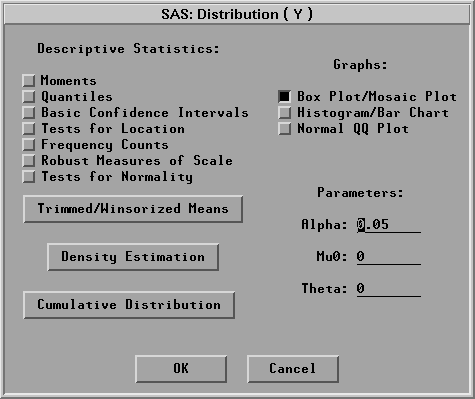
| Click OK in both dialogs to create the distribution analysis. |

Now you have a distribution window with two histograms. To add a scatter plot of both variables, follow these steps.
| Drag the bottom right corner of the window to the right. |
This increases the window size to provide blank space to the
right of the histograms.
| Drag a rectangle to select an area in the window. |

| Choose Analyze:Scatter Plot ( Y X ). |
This displays the scatter plot variables dialog.
| In the dialog, assign GPA the Y role, and HSM the X role. |
| Click OK to add the scatter plot to the distribution window. |

You can delete any graph or table in the distribution window. For example, in this window the two small tables that contain variable names are not needed.
| Click on any edge of the GPA table to select it. |
| Use extended selection to select the HSM table also. |

| Choose Edit:Delete to delete the tables. |
![[menu]](images/edweq4.gif)
Figure 25.22: Edit:Windows Menu

By choosing from the Analyze menu and choosing
Edit:Delete, you have created a window
containing one scatter plot and two histograms.
In the same manner, you can add any graph and
delete any graph or table in a window.
|
Chapter Contents |
Previous |
Next |
 Top |
Copyright © 1999 by SAS Institute Inc., Cary, NC, USA. All rights reserved.
![[menu]](images/edweq3.gif)