MAKING BUTTONS
BUTTONS ARE YOUR FRIENDS
Hear ye. Hear ye. It's time to make buttons!
We're going to be working with a few different buttons from the library today, the library is a list of symbols that exist in a particular .fla, and in this week's source we've already got a bunch of different buttons with their own unique characteristics. All we're really going to do is drag and drop... maybe a little cut and paste... drop a movieclip in somewhere... add a little actionscript... do a couple of rollovers... maybe define a couple of hit areas... have a good time?
(NOTE... if you need a bit of context for the last few sentences... here's some stewie for you)
Open this week's source, buttons.fla
ON TO THE SERIOUS STUFF - A SIMPLE BUTTON
1.Draw a square, select it.
2.Press F8 or Right Click > Convert to Symbol
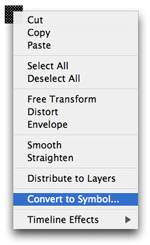
3.Give it an appropriate Name

4.Select "Button"
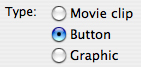
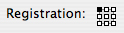
5.Choose the symbol's registration point and Hit "OK"
6.Double-click on the button and define the UP, OVER, DOWN areas.
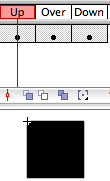
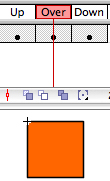
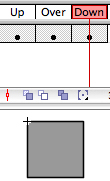
And, that's how you make buttons!
AND FROM THE LIBRARY WE HAVE... SHAPES AS BUTTONS
7.Open the library by selecting window > library and you'll see a list of symbols that have been included with the file.
8.Select “squareButton” and “roundButton” then pull them onto the stage, realign them if they're covering one another.
These two buttons are very similar, the difference being a defined hit area in the roundButton.
Notice that if you select the round button, there is a small blue outline created around it. When you test the button you'll see that your mouse reacts only to the defined “hit area” and not the button's outline.
HOW TO NOT MAKE A BUTTON
9.Pull “nohitButton” onto the stage and export the movie.
You'll notice that the button flickers a bit when you roll over it... This happens when you create outlines of your text. If your buttons act like this, all you have to do is add a shape (like a rectangle) to the button's hit area keyframe to fix the problem.
HIT THAT HIT AREA
10.Pull “yayButton” onto the stage.
11.Explore the button by double-clicking it on it.
You'll see that this button is nearly identical to our “nohitButton”, the difference being we've put a rectangle in the hit area and now when you export the movie this button will act quite normal.
AND WE HAVE A BACKGROUND!
12.Pull the “bghitButton” onto the stage and export it.
You'll notice that we've added a background to the over and down states of the button.
13.If you explore the button you'll see that all we've done is added a rectangle to both of those frames.
CUSTOM BACKGROUNDS
14.Pull the “customButton” onto the stage and explore it.
This button is similar to “bghitButton”, the difference being a custom background that we've defined for the down and over states, as well as for the hit state (i.e. you can make creatively shaped buttons).
15.Export your .fla and see how this button works... Notice that we've customized the look of the shape between the over and down states and see how the custom background reacts.
AND WE OWE IT ALL TO HOLLYWOOD... ADDING MOVIECLIPS TO YOUR BUTTONS
16.Pull the movieclip button onto the stage... if you export the movie right now... nothing will happen.
17.Explore the button and add a new layer under the original layer... Do this by hitting the “new layer” button and then dragging the new layer under the original layer.

18.Add keyframes to the over and hit frames on the second layer by selecting them and pressing F6 (or selecting Insert > Timeline > Keyframe).

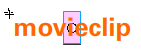
19.Next, select the "over" frame in layer 2 and drag "movieButtonBGClip" onto the stage. Position it in the center of the button and then export it to see it in action.
DYNANYMOUS TEXT... CREATING A DYNAMIC TEXT BOX
20.Select the Text tool (by pressing T, or selecting it from the toolbox) and drag a textbox on the stage (just like you would create a rectangle).
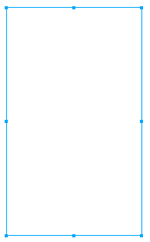
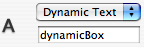
21.Change the properties of the textbox to read "dynamic text" and give it an instance name called "dynamicBox" into the instance name field.
22.Change the font to whichever you want to use.

23.Hit the "embed" button and select a series of glyphs you want to embed with your file.

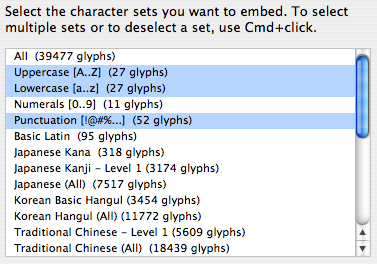
This will actually put the type files into your .fla when you export it. If you don't do this step then you won't see anything appear in the dynamicBox at runtime.
24.Drag "dynamicButton" onto the stage and with it selected paste the following code into the actions dialog box (which you can access by pressing F9 or selecting window > actions)... This code will tell the .swf what to do when you let go of the dynamicButton.
on(release, releaseOutside)
{
if(_root.counter == 8) _root.counter = 1;
else counter++;
_root.dynamicBox.text = _root["text"+counter];
}
25.From the main stage, select the first frame and again open the Actions dialog box. Paste the following code into that frame... This code give the .swf the information to display, creates and creates a counter for the dynamicButton, and initially loads the value of text1 into dynamicBox at runtime.
var counter = 1;
var text1:String="This is a dynamic text box, you can add new content here on the fly... So, instead of making lots of different boxes, you and simply load and unload information.";
var text2:String="Pretend you have a series of projects...";
var text3:String="And you have different write-ups for each one...";
var text4:String="You can use dynamic text boxes to change the content for each project without having to make a ton of different elements!";
var text5:String="WORK SMARTER, NOT HARDER!";
var text6:String="ENJOY LIFE BY NOT BEING STUCK IN FRONT OF A COMPUTER DOING USELESS REPETITIVE TASKS!";
var text7:String="HARNESS THE POWER OF FLASH!";
var text8:String="Seriously, though, Flash is pretty good for dolling up your sites and making nice looking interactive pieces; but it is limited in a lot of ways. One of Flash's biggest drawbacks is memory management, it can't effectively draw on your computer's memory and will run slow and crash if you're trying to make things that are too complex. If you're interested in doing some computational visualization (in projects next year) then you should look into another language, like Processing (http://www.processing.org)";
dynamicBox.text = text1;
FINITO!
[exeunt]