|
|
|
 |
 |
|
|
|
|
 |
 |
|
|
|
|
 |
 |
|
|
|
|
 |
 |
|
|
|
|
 |
 |
|
|
|
|
 |
 |
|

 |
 |
||
_____
_____
_____
_____
_____
_____
|
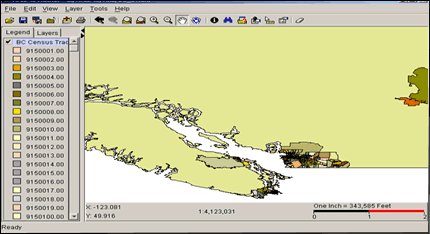
This section will detail the main steps involved in the completion of the interactive atlas for British Columbia. This section is for documentation purposes, but is designed so that someone interested in achieving the same outcome could follow these instructions and be successful. This section only covers the main steps involved in project completion - these "instructions" assume that the user has some previous knowledge of ArcIMS, ArcGIS, ArcView, JavaScript, XML and Moximedia's IMF.
2. Preparing Attribute Data : Creating a Custom Table The first major step in this project is to prepare a custom attribute table that will be attached to the BC shapefile. This data will be a major portion of your ArcIMS dataset and will undergo many crucial edits. It is important to make many backups of these files. The reason why you need to make a custom table is to avoid having unwanted information around which will cause you more work with ArcIMS later. IMPORTANT : When considering census attributes to include in your custom table, you must include the attribute that is "leader" of its realm. For example, if you are going to create a thematic map of single-detached houses, you MUST include the C96TOTDWLG field. This field represents the total number of private dwellings in a CSD. For correct normalization (explained below), the leader of the realm is needed. The census attribute data at SFU is well organized. It is categorized within a geodatabase and has corresponding PDF lookup tables that explain what variables fall into which sections. A similar setup is recommended. B ) After you have added all required census groups to the table, it is time to use ArcView to delete unwanted fields. This is a tedious task when only a few variables are needed out of a large census group. Nonetheless, it will achieve the desired goal. 3. Manual Normalization of the Data The second major step involved with this project includes the conversion of select attribute fields to a normalized form. This needs to be done manually due to the lack of options available in ArcIMS 3.0. Documentation in the form of 1996 census lookup tables must be used for this step in order to identify each field name and learn the respective realm it belongs to. A ) Open your completed custom table in ArcView, and create a new field. When creating the field, include three decimal spaces in its properties. I gave each normalized field a name with a "_n" extension for reference. This will help you when making later modifications. Note: We are normalizing the data so that it is possible to have an unbias comparison of every CSD, and to have consistent ratio values in our legend. B ) The next step is to use the ArcView field calculator to populate this newly formed field. This is done by dividing one field (census attribute) by the "leader" of its realm. An example is as follows: To correctly normalize "Number of Families with 1 Son or Daughter," one would divide this field (C961chhwcl) with "Total Husband-Wife Families by Family Structure" (C96famhw). After this division is made, this field will correctly represent the ratio of families with 1 son or daughter with respect to all other recorded family structures. This normalization procedure must be repeated for every variable you wish to depict as a thematic map. In order to provide a well-rounded series of census maps, I included 75 variables that I found "appropriate." 4. Edits to be Made in ArcView There are a few edits that must be made after normalizing each census variable. The graduated color schemes for each thematic map must be set in ArcView, due to the limiting schemes of ArcIMS Author. Alternatives would include creating your own color schemes manually. This would involve setting individual RGB values in appropriate XML files - this would take much more time. There are other edits that must also be completed to compensate for ArcIMS glitches. These are explained below. A ) When first creating your thematic maps, you must select the normalized field you have created as well as a color scheme to be displayed. B) Secondly, you must make edits to the legend. There is a glitch in ArcIMS that does not allow a class to end and then start with the same value in the next class. For example - a legend such as this would appear as one class: 0 - 0.27, 0.27 - 0.42. In order to avoid this, you must add a third digit to each class. The subsequent legend would look like this: 0 - 0.271, 0.272 - 0.420. This does not affect the data integrity, but it does allow the map to be displayed properly. If you enabled the normalized fields to have 3 digits upon creation, this should make edits much easier. C) When you make edits to the field values in ArcView, the program automatically changes the "name" values that the user will see. You need to change these values back to 2 digits for the benefit of user clarity. For example: If a class is depicted as 0.272 - 0.420, you should change it back to 0.27 - 0.42 under the "name" field on the right side of the legend menu. 5. Using the View to ArcXML Extension In order to transfer ArcView produced thematic maps in a near flawless form to ArcIMS, an ArcView extension must be used. I installed an extension which I found at an ESRI ArcIMS support page . The utility converts the map that is in the main view to an AXL file which is ready for ArcIMS publishing. A) After completing all edits appropriate in ArcView, run the "view 2 axl conversion" after enabling it under "Extensions" in ArcView. You will be asked where you would like to save the new file. B) After converting to an AXL file, open it in ArcIMS Author. Here you can compare your view in ArcView to the view in ArcIMS. If the views do not match, a glitch may have occurred. A time consuming portion of this project was this particular step. I found myself changing legend values in ArcView many times and re-converting the view using this extension. This was necessary to make sure the AXL file was a true representation. TIP: When editing the legend values in ArcView (Step #4 above), alter the third digit by two numbers. An example would be changing 0.27 - 0.42 to 0.272 - 0.422. I found this drastically changed the amount of AXL errors. Final Note: If you have capitalized names of themes in ArcView, they will appear lower case in ArcIMS Author. You must correct these within Author if this is your preference. -- FROM THIS POINT ON, MOXIMEDIA'S INTERNET MAPPING FRAMEWORK IS NEEDED. THIS REQUIRES A SITE LICENSE OR EDUCATIONAL USE PERMISSION -- 6. Internet Map Framework / XML Edits I will provide a brief overview of the edits I have made to "layer.xml" and "site.xml," which are two key files necessary for proper IMF launch. It is not necessary to cover every customization involved with the Interactive Atlas, as this information can be derived from the IMF Developer's guide. A) For "layer.xml," I created seperate folders for each census category and set immediate-refresh to "true" so only one thematic map in each group can be turned on at one time. In addition to this, I created aliases for all attributes - these are shown when the user clicks the identify button on a region. Finally, all folder visibility was set to "false," except for "Population Counts" which is the top group. Note: Asterisks were also added to field name aliases for sample data clarification purposes. B) In "site.xml," it is important to set the projection under "projection name" to match the reference projection which was set in ArcGIS. My projection was "TransverseMercator" zone="10." Many edits were also made under "tabs" to compensate for new tab buttons and JavaScript additions. These edits are straight forward and are all documented within the developer's guide. FINAL TIP : After making XML edits, open each file in a web browser such as Internet Explorer - this will validate the XML and let you know where any errors exist. Eg. "line 43 - invalid character." This is important, as any small error can make a large difference to the display. * All general ArcIMS JavaScript and ArcXML edits will not be covered here. This is the end of documentation regarding the Interactive Atlas creation. My e-mail is available in the left frame if any further help is needed regarding a similar project. |