Example: Create a Tabular Report
In this example, you use the Class data set as the basis of
your report. To open the Class data set, follow these steps:
- Select Tools
 Sample Data ...
- Select Class.
- Click OK to create the sample data set in your Sasuser
directory.
- Select File Open By SAS Name ...
- Select Sasuser from the list of Libraries.
- Select Class from the list of members.
- Click OK to bring the Class data set into the data
table.
Use the fifth report style to display the average weights by age and
sex in the Class data set. To choose a report style, follow
these steps:
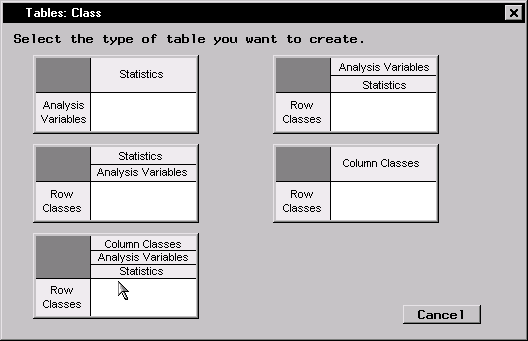
- Select Reports
Tables ...
- Select the fifth report style.
Figure 6.22: Select the Fifth Report Style
To specify the rows and columns for your report, follow these steps:
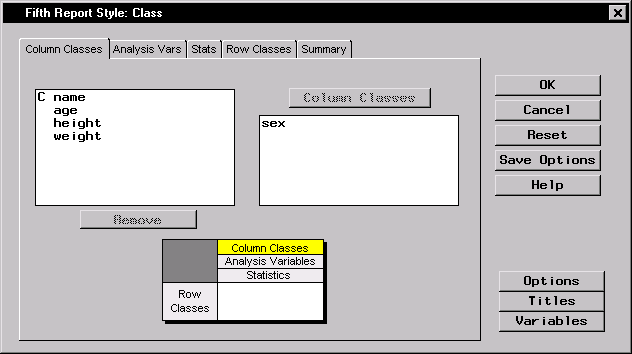
- In the Column Classes tab, select sex from the
candidate list and click on the Column Classes button to display
the values of sex as columns in your report.
Figure 6.23: Select a Column Class
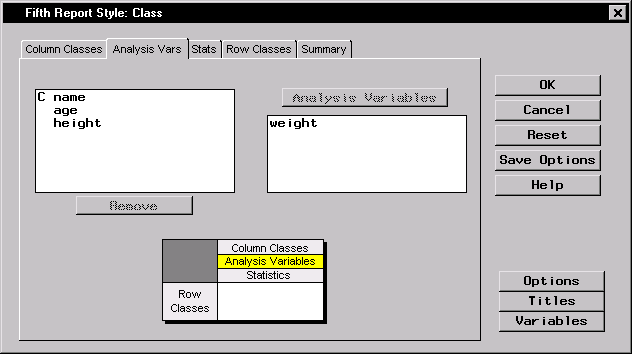
- Click on the Analysis Vars tab. Select weight from the
list and click on the Analysis Variables button to make
weight the analysis variable in your report.
Figure 6.24: Select an Analysis Variable
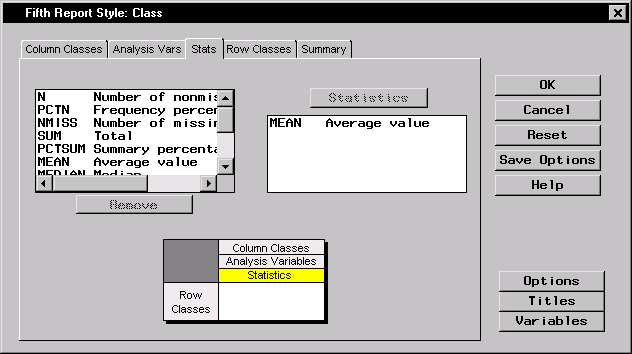
- Click on the Stats tab. Select MEAN from the list and
click on the Statistics button to display the average weight.
Figure 6.25: Select a Statistic
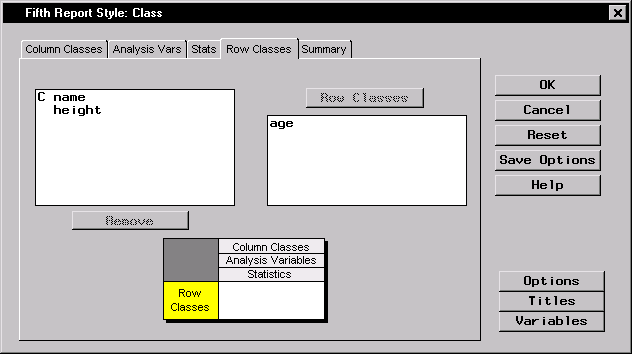
- Click on the Row Classes tab. Select age from the list
and click on the Row Classes button to display the values of
age as the rows in your report.
Figure 6.26: Select a Row Class
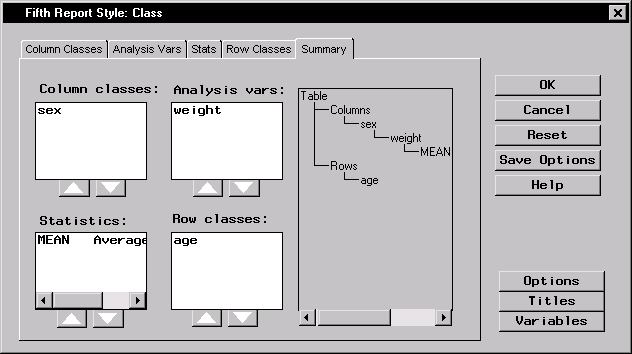
- Click on the Summary tab to see the results of your
selections.
Figure 6.27: Report Layout
To specify the options for your report, follow these steps:
- Click on the Options button in the Fifth Report Style dialog.
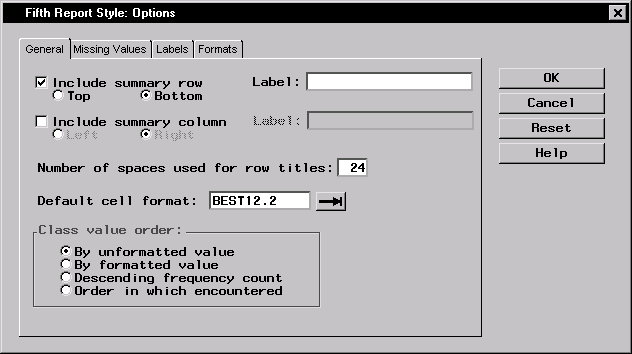
- In the General tab, select Include summary row. Click
Bottom to display a summary row at the bottom of each column.
Figure 6.28: Include Summary Row
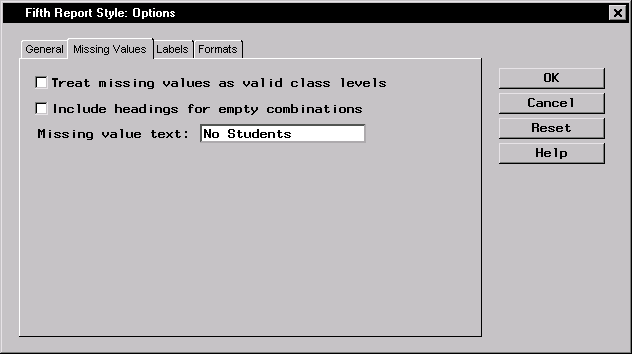
- Click on the Missing Values tab. Type No Students in the
Missing value text: field.
Figure 6.29: Type Missing Value Text
- Click OK to save your changes and return to the Fifth
Report Style dialog.
To create a title and suppress the date and page numbers in your
report, follow these steps:
- Select the Titles button in the Fifth Report Style dialog.
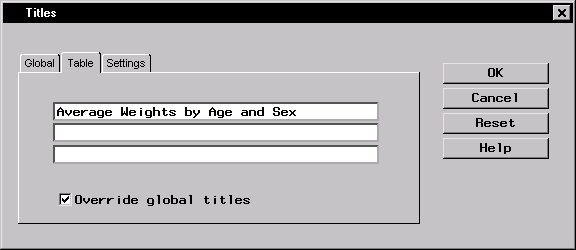
- In the Table tab, type Average Weights by Age and
Sex in the first field.
- Select Override global titles to suppress the title from
the previous example.
Figure 6.30: Add a Title
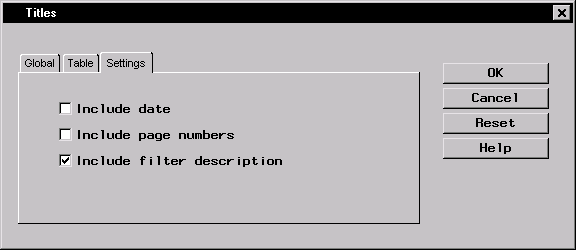
- Click on the Settings tab. Deselect Include date and
Include page numbers so that the date and page numbers are not
displayed in your report.
Figure 6.31: Suppress Date and Page Numbers
- Click OK to save your changes and to return to the Fifth
Report Style dialog.
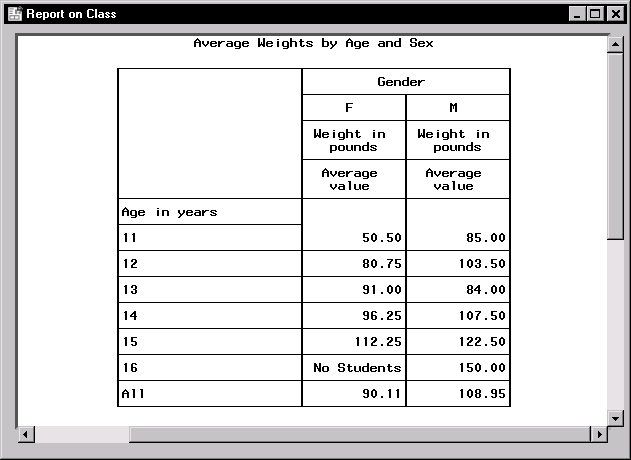
To display your report in the fifth report style, click OK in
the Fifth Report Style dialog.
Figure 6.32: Display Report in Fifth Report Style
Copyright © 1999 by SAS Institute Inc., Cary, NC, USA. All rights reserved.