Example: Create a Listing Report
In this example, you use the Fitness data set as the basis of
your listing report. To open the Fitness data set, follow these steps:
- Select Tools
 Sample Data ...
- Select Fitness.
- Click OK to create the sample data set in your Sasuser
directory.
- Select File Open By SAS Name ...
- Select Sasuser from the list of Libraries.
- Select Fitness from the list of members.
- Click OK to bring the Fitness data set into the data
table.
To list maximum pulse, resting pulse, and average running pulse for
each age, follow these steps:
- Select Reports List
Data ...
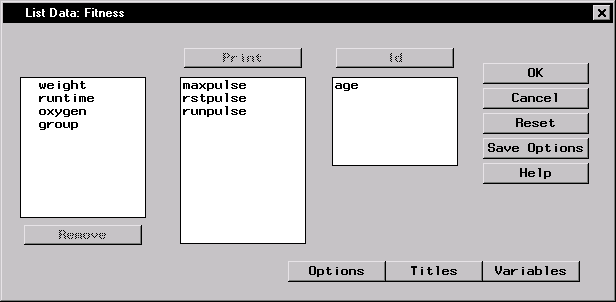
- Select maxpulse, rstpulse, and runpulse and
click on the Print button to include these variables in the report.
- Select age and click on the Id button to make
age the Id variable.
Figure 6.6: Columns in Report
To designate options such as column headings, follow these steps:
- Click on the Options button in the List Data dialog.
- In the General tab, select Column labels under
Use as column headings.
Figure 6.7: Use Column Labels as Column Headings
- Click OK to save your changes.
To specify the titles to be displayed in your report, follow these
steps:
- In the List Data dialog, click on the Titles button to
specify your report titles.
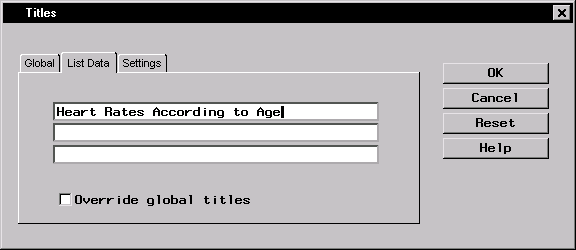
- In the List Data tab, type Heart Rates According to
Age in the first field.
Figure 6.8: List Data Title
- If you have not already done so, type Fitness
Report in the first field in the Global tab.
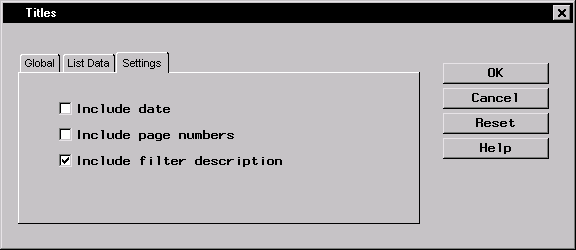
- Click on the Settings tab. Deselect Include date and
Include page numbers so that the current date and page number
are not printed on your report.
Figure 6.9: Exclude Date and Page Number
- Click OK to save your title changes.
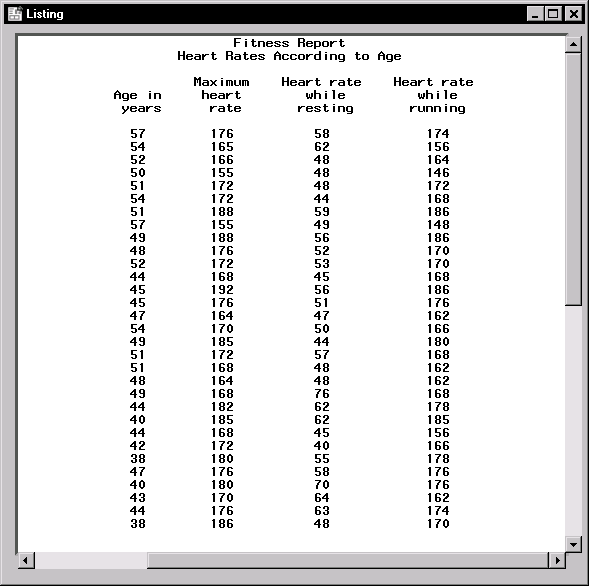
To generate a data listing of the columns that you have chosen, click
OK in the List Data dialog.
Figure 6.10: Data Listing
Copyright © 1999 by SAS Institute Inc., Cary, NC, USA. All rights reserved.