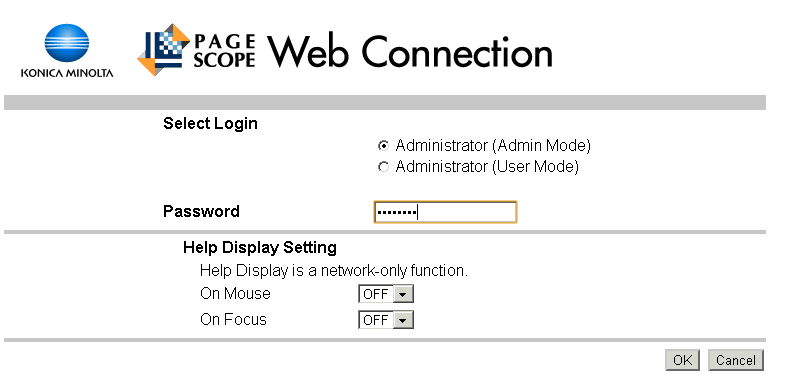
On the General Settings tab, configure as shown here.
User Authentication: ON (MFP)
Public User Access: ON (Without Login)
Account Track: OFF
Click OK when done.

Configure Print and Scan to Allow. (This is the important one)
Configure Copy to Restrict.
Configure the others as you see fit. The settings shown here are reasonable.
Click OK when done.

Here you have to begin to create New Registrations .. new users .. to replace Account Tracking.
A single department would typically create a single user with a simple User Name like "12" and a simple password like "12" and distribute this to all staff.
People would then have to logon with an ID and a password (unlike Account Track which effectively only requires a password). However, by keeping the ID short, it's much the same thing workflow.
Note too that scanning .. either to email or to a network folder somewhere .. does not require any authorization and does not require any paper to be consumed. Scanning is therefore the first choice when a hard paper copy is not absolutely required.
Click OK when done.
