
How-to guides
Calendar View Options
 Download the PDF version of this How-to Guide
‹‹ Return to How-to guides & videos
Table of contents
- Navigating the Calendar Views
- Day, Week and Work Week View
- Month View
- List View
- Schedule View
- Related How-To Guides
Navigating the Calendar Views
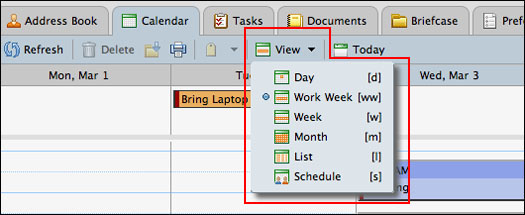
The SFU Connect calendar offers several different calendar view options. The choice of which one to use is based on personal preference. The available options are: Day, Work Week, Week, Month, List, and Schedule.
Tip: To set your default calendar view (i.e., the one that displays every time you sign on), go to Preferences, choose ‘Calendar’ on the left side, choose your Default View from the drop down menu, and click ‘Save’.
You may use the drop down menu to change views, or use keyboard shortcuts (indicated beside the drop down menu options).
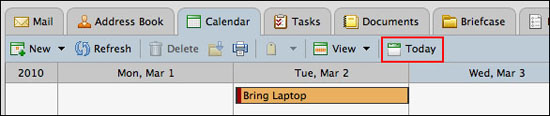
To return to the current day or time in any view, click on the ‘Today’ button, located to the right of the view options drop down menu
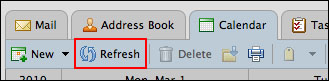
To refresh any calendar view, click the ‘Refresh’ button, located between the ‘New’ and ‘Delete’ buttons.
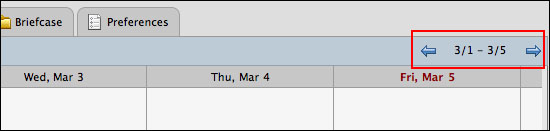
To scroll forward or backward in the current view, click on the left and right arrows located on the right hand side of the toolbar.
Tip: For quicker navigation through calendar months or years, use the mini-calendar: click on the single arrows to scroll by month, and the double arrows to scroll by year.
Day, Week and Work Week View
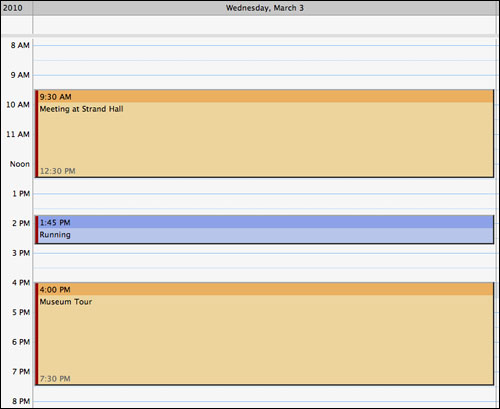
Day View gives you an overview of all your appointments in the specified day.
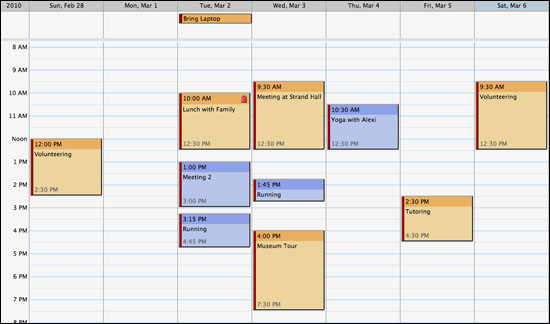
Week View gives you a 7-day week overview of your appointments.
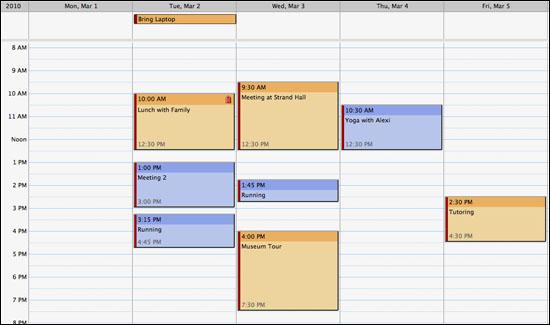
Work Week View is similar to Week View differing only in that it excludes Saturday and Sunday.
Month View
Month View displays an overview of all your appointments in the specified month.
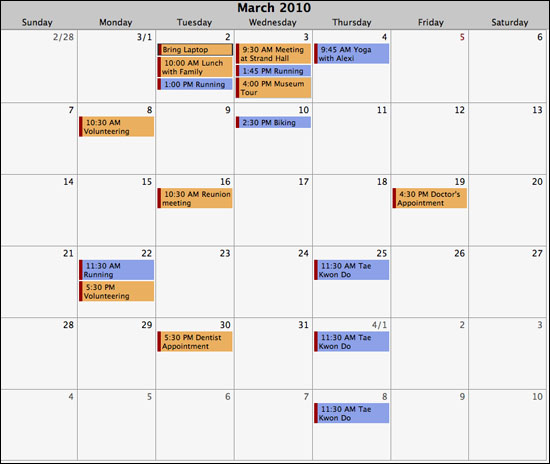
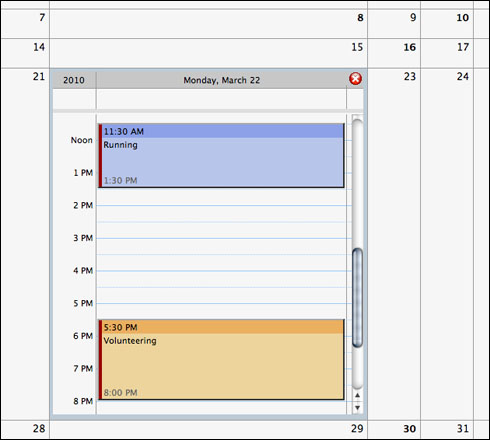
Click on a cell to activate the fish-eye view, which zooms in to display the appointments in that particular day. To close the fish-eye view, click the small red “x” button on the top right corner.
List View
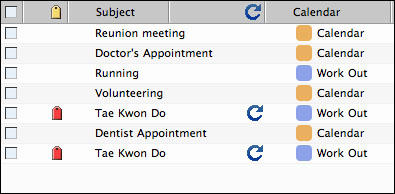
List View displays your appointments within a two-week time frame. This view also allows you to easily move, delete, tag, or print multiple selected appointments.
Schedule View
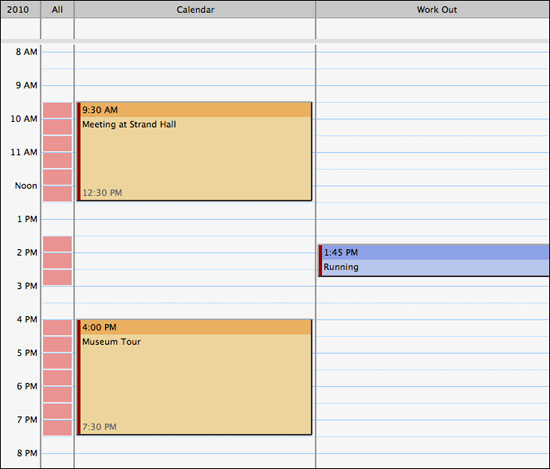
Schedule View displays an overview of appointments in a specific day from one or more calendars.
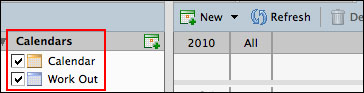
To show or hide calendars, check or uncheck them in the calendar listed on the left hand side.
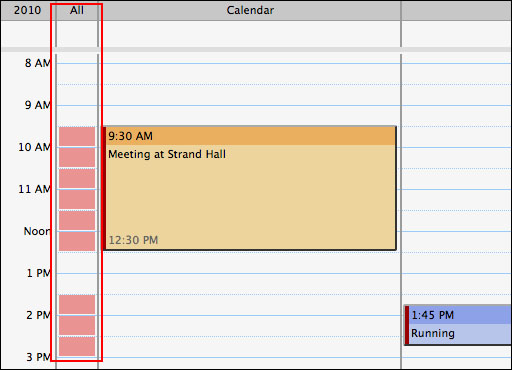
The ‘All’ column indicates your free/busy status: The more appointments you have during that time frame (based on the calendars shown in the view, including shared calendars), the deeper the shade of red the cell will display.
Related How-To Guides
For instructions on how to:
- Print calendar entries from different views, see ‘Printing Calendar Entries’
- Check availability for people, rooms and resources, see ‘Checking Availability’
‹‹ Return to How-to guides & videos