
How-to guides
Filter Setup
 Download the PDF version of this How-to Guide
‹‹ Return to How-to guides & videos
Table of contents
Overview of Contact Groups
By setting up mail filters, you can have all of your calendar notifications (meeting invitations, meeting
modifications, responses and
share notifications) placed into
one or more folders that are
separate from your inbox.
For calendar owners whose
meetings are managed by
delegates: If your calendar is
completely managed by a
delegate, it is highly
recommended that you filter
your calendar notifications into
a separate folder from your
inbox. You can then share the
mailbox folder with your delegates in order for them to follow up on meeting invitations on your
behalf.
- Navigate to the Preferences tab in SFU Connect.

- Under Preferences, click on the Mail Filters tab.
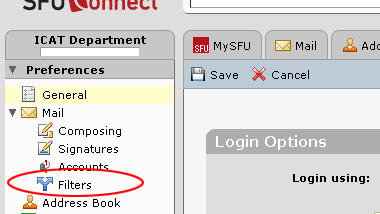
- Next, click on New Filter button.

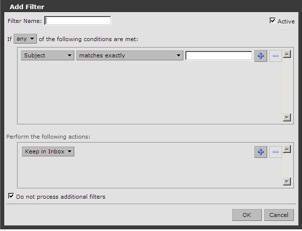
- The Add Filter menu should appear.

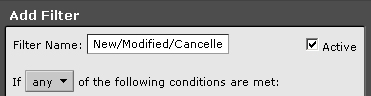
- Enter a descriptive name for the filter, e.g., New/Modified/Cancelled Meetings. Leave it set to If any
of the following conditions are met.
- For the condition, choose 'Calendar Invite' and 'is requested'.

- Under the Perform the following actions: section, choose File into folder.
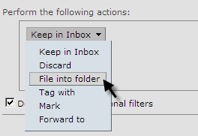
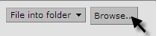
- Click the BrowseÖ button to view your mailbox folders.
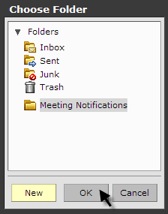
- The Choose a Folder menu should appear. Click on New.

- The Create a New Folder menu should appear. Type in a name for the new folder, e.g.,
Meeting Notifications. Click OK to create the new folder.

- The new folder should appear highlighted in the Choose a Folder menu. Click OK to
choose Meeting Notifications as the destination folder.
- On the Add Filter menu, click OK to save the filter.
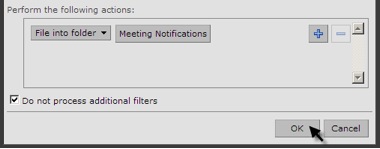
- Your filter has now been saved and should appear in your list of Mail Filters. All future email
notifications of new or modified meeting requests will now be placed in your Meeting
Notifications folder.
- Enter a descriptive name for the filter, e.g., Responses to Meetings. Leave it set to If any
of the following conditions are met.

- For the condition, choose Calendar Invite' and 'is replied'.

- Under the Perform the following actions: section, choose File into folder.

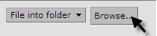
- Click the Browse button to view your mailbox folders.
- The Choose a Folder menu should appear. If you have already created a Meeting
Notifications folder, click on it to choose it, click OK and click OK in the Add Filter menu
to save it.
Otherwise, if you would like to store meeting cancellations in a separate folder, click on New to create a new folder (e.g., Meeting Responses) and follow steps 10 through 13 of this guide.

- There should be two different filters in your Mail Filters listing once you have followed this
guide.

- When you return to the Mail tab in SFU Connect, you can now share the folders youve
created to your delegates. To do this, right click on the folder and choose Share Folder.
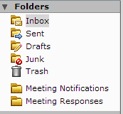

- The setup of a folder share is very similar to sharing a calendar. To view step by step
instructions on how to do this, see the Sharing Calendars How-To Guide.
Filter for New/Modified Meeting Notifications
Filter for Responses to Meetings
Sharing Folder(s) with Delegates
Related How-To Guides
For instructions on how to:
- Set up contact groups, see 'Creating and Using Contact Groups'
- Respond to a meeting invitation, see 'Responding to Meeting Invitations'
‹‹ Return to How-to guides & videos