How-to guides
Responding to Meeting Invitations
 Download the PDF version of this How-to Guide
‹‹ Return to How-to guides & videos
Table of contents
Responding to Meeting Invitations
About Meeting Invitations
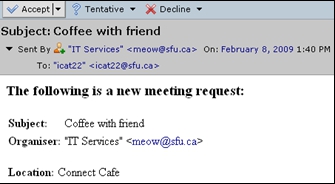
Each time you are invited to a new meeting or when an existing meeting has been modified, you will receive an email invitation.
There are two different methods of responding to meeting invitations. You can respond through the email invitation, or you can respond from the calendar.
Explanation of response types:
- Accept = Yes, I will attend the meeting.
- Tentative = I might attend the meeting.
- Decline = No, I will not attend the meeting.
Responding to an Invitation by Email
-
Meeting invitations will appear in your inbox under the Mail tab in SFU Connect, similar to normal email messages.
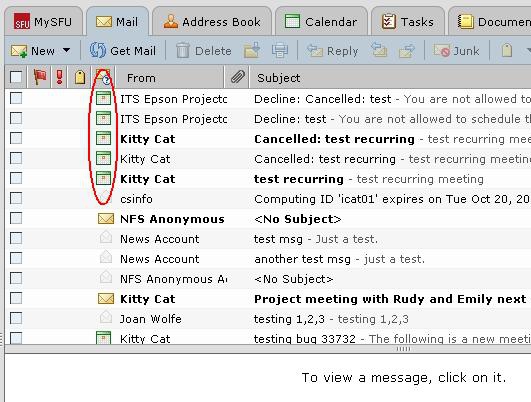
Note the difference in icons for normal email messages versus meeting invitations:- Meeting Invitation =

- Normal email =

- Meeting Invitation =
-
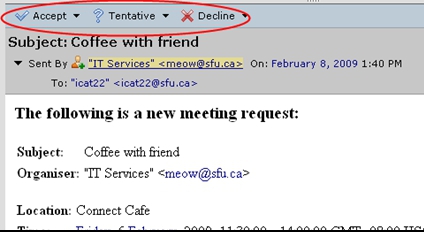
Open the message. The body of the message also contains the details of the appointment, including the subject, organizer, location, time and all invitees. You will see three buttons at the top of the message.
Note: If an existing meeting has been modified, only the most recent email invitation will contain the buttons.
-
Click on any of the three buttons to send your response to the organizer of the meeting, and to update your calendar.

With each button, clicking on the small triangle to the right will bring up a menu of options:
Notify Organizer: This is the default setting when you click directly on the Accept/Tentative/Decline buttons. Choosing this option will send an email to the organizer indicating your response.
Edit Reply: Choosing this will open a 'compose' window, allowing you to customize your reply message to the organizer of the meeting.
Don't Notify Organizer: Choosing this will save your response on your own calendar, but will not send an email nor update the organizer's calendar with your response.
-
Navigate to the Calendar tab in SFU Connect.

-
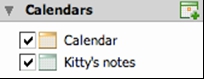
All new meetings are placed in your default calendar. Make note of the colour you chose for this calendar. In this example, the default calendar is orange.
-
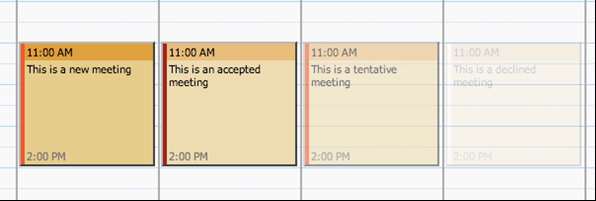
Here is an overview of how meetings appear in your SFU Connect calendar, indicating different statuses (New, Accepted, Tentative, Declined):
-
To respond, right click (Mac: Ctrl + click) on the meeting. A menu should appear, and you can then choose your response. To change your response, right click again and choose another response. Again, choose 'Edit Reply' if you would like to edit the message.
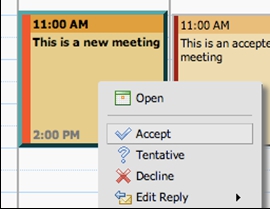
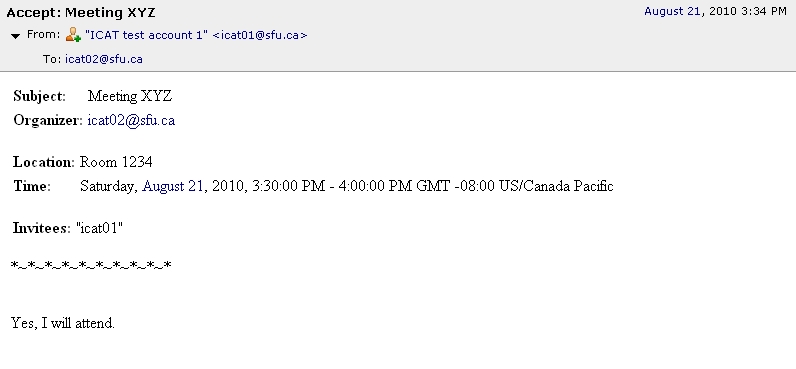
The meeting will be updated in your calendar (as well as the organizer's), and typically, a message will be sent to the organizer of the meeting to notify them of your response. Note: Other attendees will not receive your response message.
Responding to an Invitation Using the Calendar
Forwarding Appointments
Invitations sent to you can be forwarded to someone who is not already on the attendee list. Common uses for this feature include forwarding an appointment as an FYI, or to simply include someone that may have been missed by the organizer as an attendee.
Tips on the behaviour of forwarded appointments:
- Responses will be received by the original organizer of the appointment, and not by the person forwarding the appointment.
- Recipients of forwarded appointments will not receive updates unless the modified appointment is also forwarded to the recipient.
Forwarding from Email Invitation
-
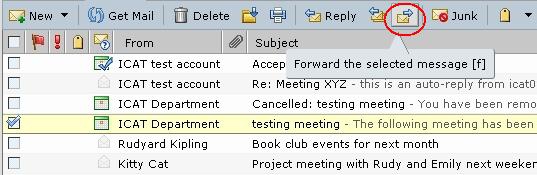
Select the email invitation you wish to forward, and click 'Forward' as you would normally do for a regular email message.
-
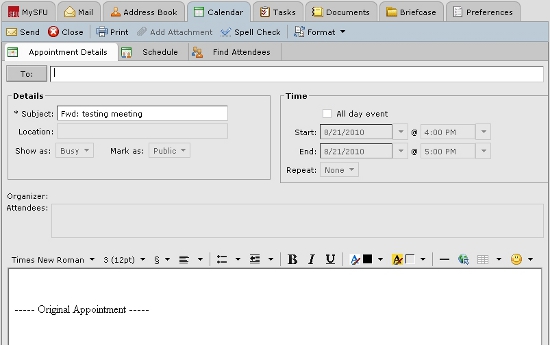
The Forward Appointment menu should appear, with a To: field on the top. Enter the email addresses of the persons to whom you wish to forward the appointment.
-
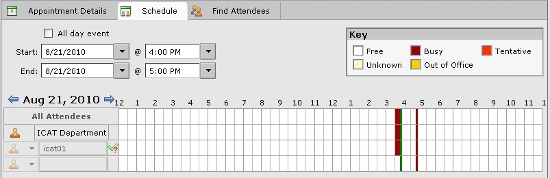
You may wish to use the Schedule tab to view the availability of the persons to whom you are forwarding the appointment.
-
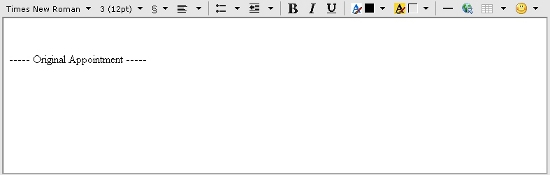
It is often helpful to type in a note describing the reason(s) for which you are forwarding the appointment. Type them in the notes field at the bottom of the menu.
-
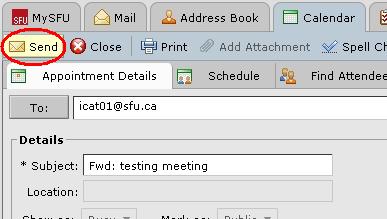
Click the 'Send' button near the top left of the menu to forward the appointment.
Forwarding from the Calendar
-
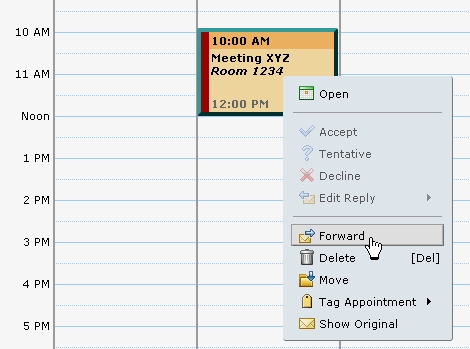
Right click on the appointment you wish to forward, and choose 'Forward Appointment'.
-
The Forward Appointment menu should appear, with a To: field on the top. Enter the email addresses of the persons to whom you wish to forward the appointment.
-
You may wish to use the Schedule tab to view the availability of the persons to whom you are forwarding the appointment.
-
It is often helpful to type in a note describing the reason(s) for which you are forwarding the appointment. Type them in the notes field at the bottom of the menu.
-
Click the 'Send' button near the top left of the menu to forward the appointment.
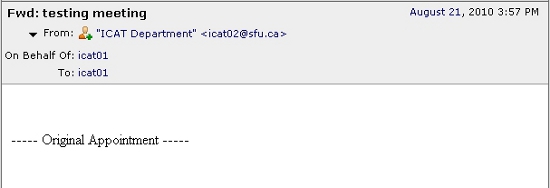
Note: When receiving a forwarded appointment email notification, it will appear as if it is from the original organizer of the appointment. Click on the message to view the full details of the appointment.