How-to guides
Viewing Google Calendars from SFU Connect
 Download the PDF version of this How-to Guide
‹‹ Return to How-to guides & videos
Table of contents
Purpose of this Guide
This How-To Guide will show you how to subscribe to your Google Calendar from SFU Connect, providing you with the convenience of viewing calendars from different sources at a single location.
Please note that subscribing to your Google Calendar in SFU Connect will provide a read-only view of your Google Calendar events; no edits can be made to calendar subscriptions in SFU Connect. Instructions on how to manually reload subscribed calendars are located at the end of this guide.
Instructions
Locating your Google Calendar URL
-
Sign onto your Google Calendar account: http://www.google.com/calendar
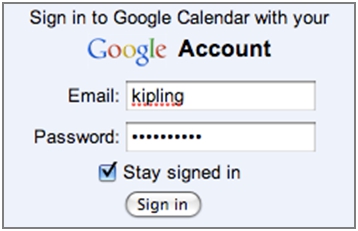
-
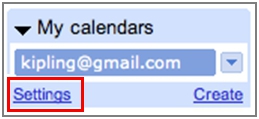
On the left side of the screen after login, click on Settings under My calendars.
-
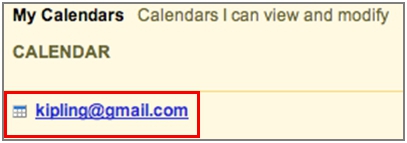
Under My Calendars, click to view the details of your default Google Calendar (usually labeled with your Gmail email address).
-
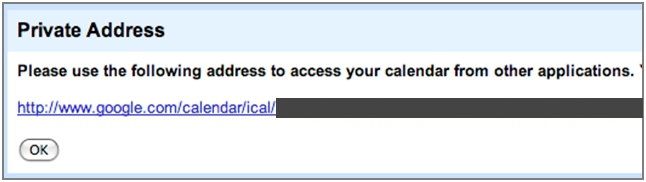
On the calendar details screen, scroll to the bottom of the page to Private Address. There should be three coloured buttons: XML, ICAL, and HTML.

-
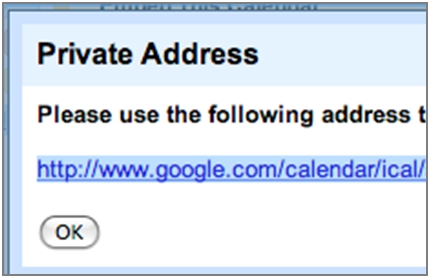
Click on the ICAL button. The private URL to your calendar in .ics format should appear. Keep this window open; you will need this URL in the later steps of this guide.
Subscribing to your Google Calendar in SFU Connect
-
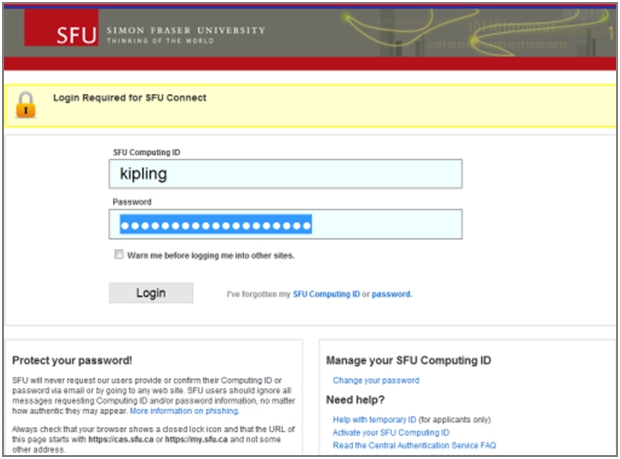
In a separate browser tab or window, sign onto SFU Connect http://connect.sfu.ca
-
Click on the Calendar tab.

-
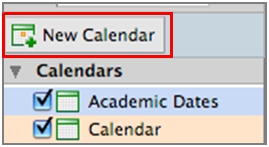
Next, click on New Calendar on the left side of the screen.
-
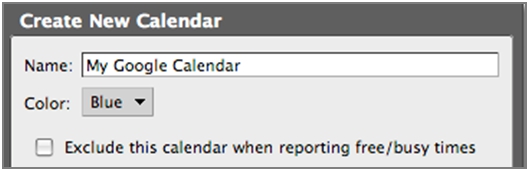
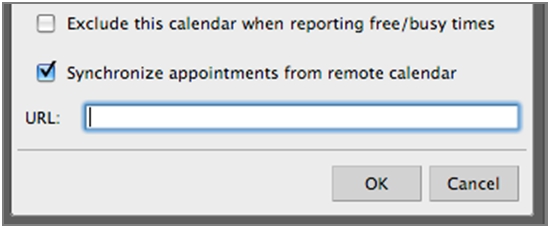
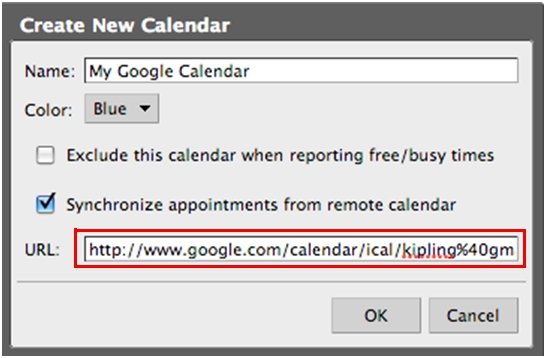
Give the new calendar a name, e.g., 'My Google Calendar' and choose a colour from the drop-down menu. If you do not want your Google Calendar to affect your free/busy information in SFU Connect, check on 'Exclude this calendar when reporting free/busy times'.
-
Next, check on Synchronize appointments from remote calendar. A new field for a URL should appear just under the checkbox.
-
Return to the window/tab with your Google Calendar URL.
-
Click and drag to highlight the link to select the text and copy it. Do not click directly on the link, as doing so will make the browser attempt to download an .ics file.
-
Return to the window/tab with SFU Connect. Paste the text into the URL field. Click OK to create the calendar subscription.
-
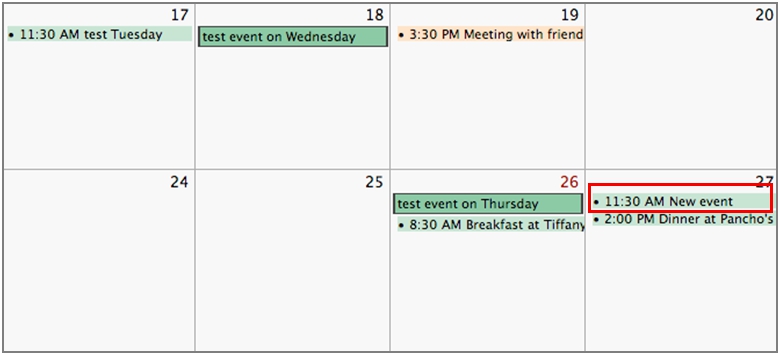
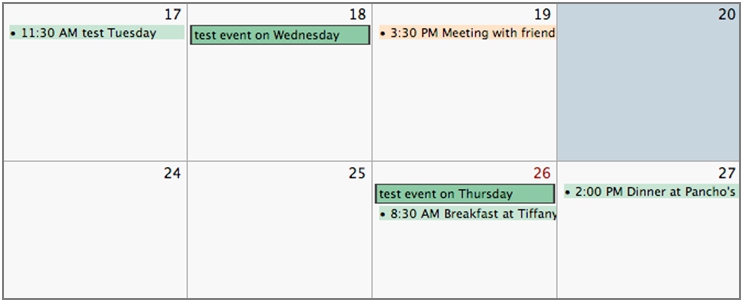
The events from your Google Calendar should appear in SFU Connect, displayed in the colour you had chosen for the subscribed calendar. In this example, the Google Calendar events are shown in green in the SFU Connect Calendar.
The subscription to your Google Calendar is now complete.
Reloading (updating) your subscribed Google Calendar
Note: Calendar subscriptions are reloaded once every 24 hours. However, you can manually reload a calendar by following these steps:
-
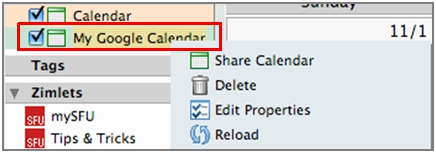
To update your subscribed Google Calendar in SFU Connect, right click on the calendar on the left side of the screen.
-
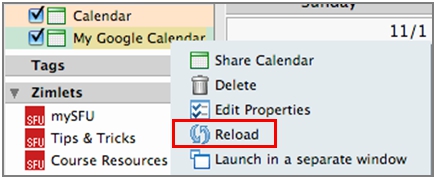
A right click menu should appear. Click Reload to update the subscribed calendar
The events on your Google Calendar subscription should now be updated with any changes or new meetings and events.