
How-to guides
Creating, Modifying & Cancelling Appointments
 Download the PDF version of this How-to Guide
‹‹ Return to How-to guides & videos
Table of contents
- Creating a New Appointment
- Creating & Customizing Repeat Patterns
- Modifying an Existing Appointment
- Cancelling an Appointment
Creating a New Appointment
QuickAdd Appointment Menu
The QuickAdd Appointment menu is an abbreviated version of the more complete Appointment Details menu. To see additional options such as viewing the availability of a person, location or resource, customizing a repeat pattern, adding attendees and creating an all day event, click on the 'More Details...' button at the bottom left of the QuickAdd Appointment menu.
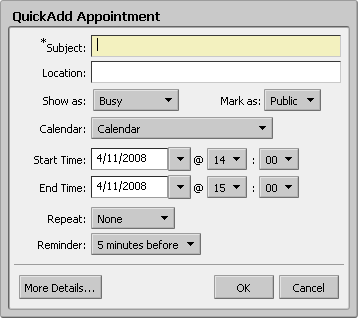
You can bypass the QuickAdd Appointment Menu by going to the Preferences tab, choosing Calendar, unchecking 'Use the QuickAdd dialogue when creating new appointments' and clicking on the 'Save' button.
-
Navigate to the Calendar tab in SFU Connect.

-
In your calendar, double click on the date in which you would like to create an appointment. Or, in the Day, Week, Work Week or Schedule views, you may also click and drag to select a time frame.

The QuickAdd Appointment Menu should pop up after you release the mouse button.

-
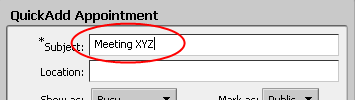
Enter the subject of your choice. Note that the Location field in this window is text-only; it is not connected to the list of bookable locations in the system. Clicking on 'More Details...' and choosing a location in the Appointment Details menu is highly recommended.
-
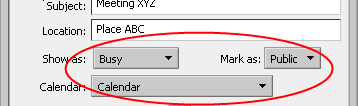
By default, appointments are set to show as 'Busy' and marked as 'Public'. You may also change the destination calendar in which you want to create this appointment, which is automatically set to your main calendar.
-
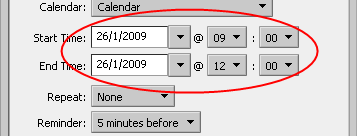
Select the dates and times for the start and end of the appointment. You can select a repeat pattern and reminder time from the drop down menu.
-
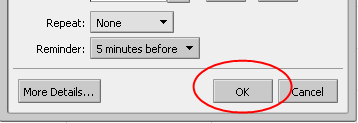
To customize the repeat pattern, click on 'More Details...', followed by clicking on the blue 'Customize' link. See the Creating & Customizing Repeat Patterns section of this guide. Otherwise, if you have finished, click 'OK' to save the appointment.
-
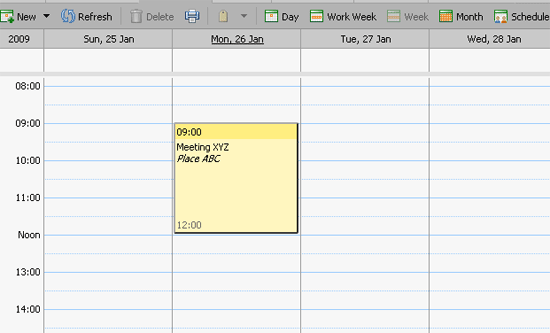
The new appointment has now been created and should appear in your calendar.
Appointment Details Menu
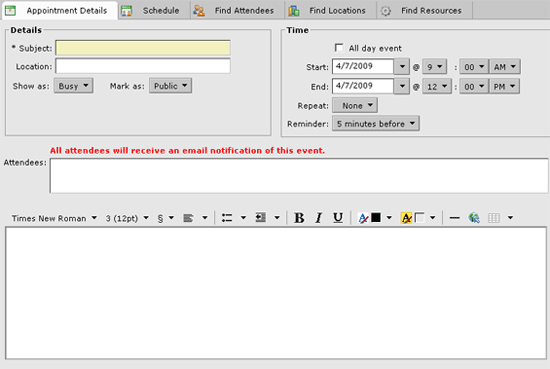
The Appointment Details menu offers the more customization options for appointments.
Summary of additional options:
- Search/add attendees
- Search/add locations
- Search/add resources
- Customize a repeat pattern
- Add attachments
- Spell check
- View free/busy times
-
Navigate to the Calendar tab in SFU Connect.
-
Click on the 'New' button near the top left of the screen to create a new appointment. You can also click on the triangle just to right of the 'New' button and choose 'New Appointment'.

-
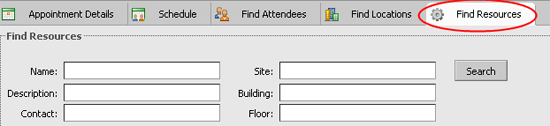
The Appointment Details Menu should appear. There are five tabs on the menu: Appointment Details, Schedule, Find Attendees, Find Locations and Find Resources. Above these tabs, there are also the options to add attachments, check spelling and change the formatting (HTML or text).
Setting Free/Busy Status & Access Level
-
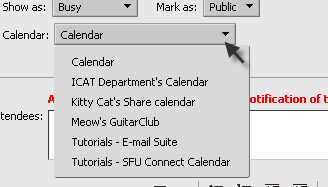
In the Appointment Details tab, you can enter the main details of the appointment. By default, appointments are set to show as 'Busy' and marked as 'Public'.
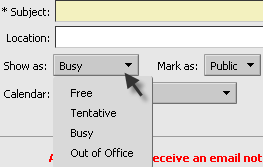
Note: By default, any SFU Connect user can only see whether you are free or busy for a meeting; they cannot see the details of your meeting unless you share your calendar with them. Marking a meeting as 'Private' will hide the meeting details from those with whom you have shared your calendar. To view more details on sharing, see the 'Sharing Calendars' How-To Guide.
You may also change the destination calendar in which you want to create this appointment, which is automatically set to your main (default) calendar.
-
Additional notes regarding the meeting can be entered in the large field at the bottom of the page. Using the toolbar, you can customize the HTML formatting of the message. These notes will be included in the e-mail notification to all attendees.

-
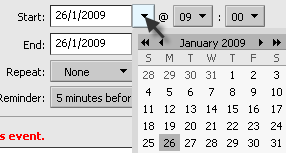
Select the dates and times for the start and end of the appointment. You can select the ‘All day event’ check box, which makes the appointment an event or note that shows up at the top of the calendar in Day, Week, Work Week and Schedule views.
-
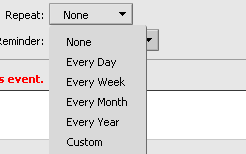
A repeat pattern and reminder time can be selected from the drop down menu. To customize the repeat pattern, choose ‘Custom’, or click on the blue ‘Customize’ link, which will bring up a more options. See the Creating & Customizing Repeat Patterns section of this guide for more information.
Adding Locations & Resources
Note: Before adding specific locations and/or resources to your appointment, please ensure that you have permission to book them. Locations/resources that have booking restrictions will have ‘[R]’ at the end if the name. If you do not have permission to reserve a particular location or resource, you will receive an e-mail message indicating that the booking has been declined. Contact the department's location/resource administrator (seen in the Contact column of the search results) to find out more about their booking policies.
There are two methods of adding locations to an appointment:
-
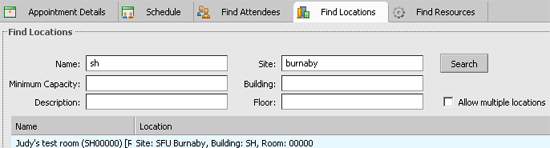
Go to the Find Locations tab and perform a search. Double click on the location to add it.
-
Or, begin typing a location name in the field if you already know it. The system will attempt to find a list of matches based on your entry.
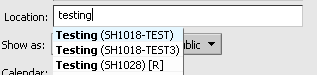
- Or, if you do not wish to request a bookable location, simply type in the name and the system will treat it as plain text.
To add resources to the meeting, go to the Find Resources tab and perform a search. Double click on the resource to add it.
Adding Attendees
There are two methods of adding attendees to an appointment:
-
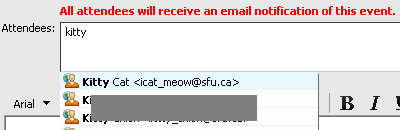
Begin typing an attendee’s name in the field. The Global Address List (GAL) will attempt to find a match based on your entry.
-
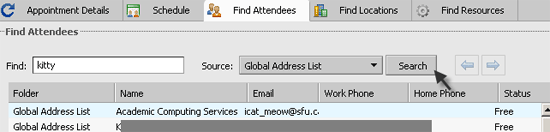
Or, go to the Find Attendees tab and search for your attendees. Double click to add the attendee.
Checking for Conflicts/Availability
-
To check the availability and/or time conflicts of the attendees, location or resource, click on the Schedule tab. The organizer will appear at the top of the list of All Attendees. The green line indicates the proposed start time, and the red line indicates the proposed end time.
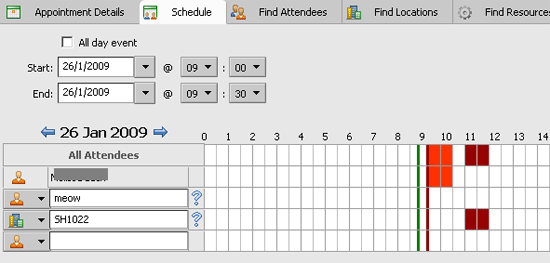
The availability of time slots is marked as follows:
White = Free
Dark red = Busy
Orange = Tentative
Yellow = Out of Office
-
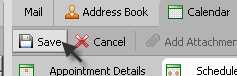
Once you have finished entering the appointment information, click ‘Save’.
-
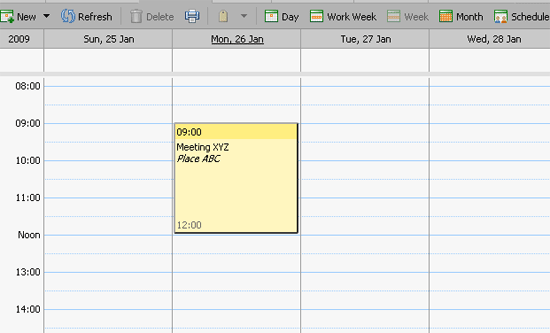
The new appointment has now been created and should appear in your calendar. An e-mail will automatically be sent to all attendees to notify them of the new meeting.
Creating & Customizing Repeat Patterns
-
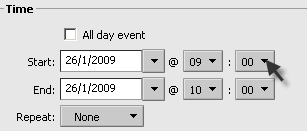
When creating a repeat pattern, begin by entering the start time/date and end time/date for the first instance (not for the entire range of the meeting pattern).
-
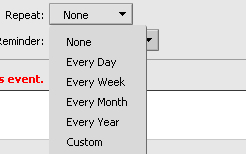
Then, either select a predefined repeat pattern from the drop down menu, or select ‘Custom’ to bring up more options.
-
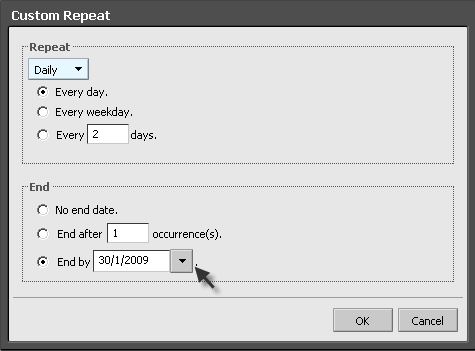
In the ‘Custom Repeat’ window, there is a wider range of settings available. You may also choose how the repeat pattern ends: Either after a number of occurrences, or at a specific date.
-
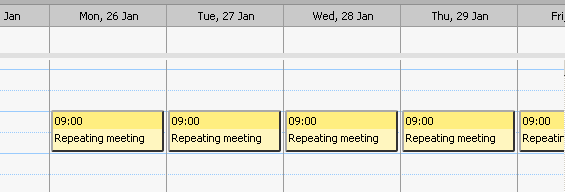
Click ‘OK’ to save the repeat pattern. The repeating meeting should show up in your calendar once you click ‘Save’ in the main Appointment Details menu.
Note: Modifying Instances and the Series of a Repeat Pattern
You can modify one or more instances of a meeting pattern. Modifications can also be made to an entire series. However, note that if you add an attendee to the series, this will cause all the meetings in the pattern to show up in the attendee’s calendar, including all customized instances. This will not be apparent to the organizer of the meeting.
Modifying an Existing Appointment
Tip: Appointments can be dragged to new time slots (or to change the duration) in the following views: Day, Week, Work Week and Schedule. However, if you need to check for conflicts, you will need to double click on the appointment and view the Schedule tab. The system will not alert you of conflicts.
-
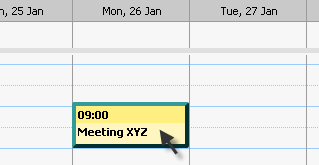
To modify details, double click on the appointment you wish to modify.
-
If the appointment belongs to a repeat pattern, you will be asked whether you are modifying the instance or the entire series. Choose an option and click ‘OK’.

-
This should bring up the Appointment Details screen.
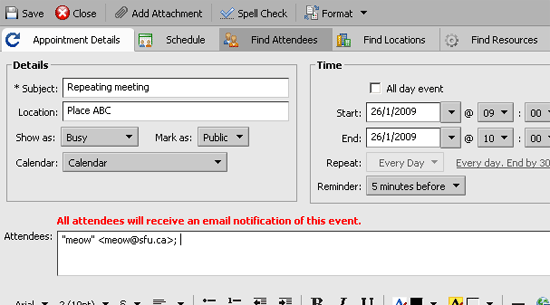
- After you have finished making changes, click ‘Save’ to confirm the changes. An e-mail notification will be sent to all attendees.
Cancelling an Appointment
-
To cancel an appointment that you have created, select the appointment and press the ‘Delete’ key on your keyboard. If the appointment you selected is an instance of a repeat pattern, the system will ask you whether you would like to delete the instance or the entire meeting pattern series.
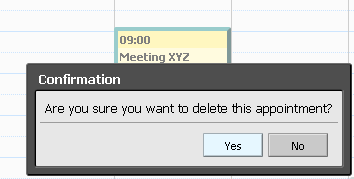
Note: You cannot cancel an appointment if you are not the organizer (i.e., you did not create the meeting). If you delete an appointment from your calendar that was not created by you, it is only removed from your own calendar, and not for all other attendees. However, if the organizer makes a change to the meeting, it will reappear on your calendar.
-
After you click ‘Yes’ to confirm the cancellation, the system will ask you whether you would like to customize the cancellation message if you have attendees. If you would like to customize the message, click ‘Yes’ and an email will open. Note that if you cancel the message, the appointment will neither be cancelled nor deleted from the calendar.

If you choose ‘No’, an automated message will be sent to all attendees to notify them of the meeting cancellation.
- The meeting has now been cancelled and should no longer appear on your calendar.