
How-to guides
Sharing Calendars
 Download the PDF version of this How-to Guide
‹‹ Return to How-to guides & videos
Table of contents
Accessing the Share Properties Menu
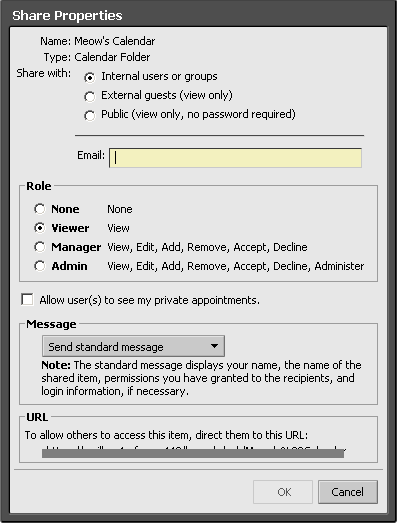
The Share Properties menu allows you to customize your options for sharing your calendar, including:
- User types (internal, external or public)
- Role (Viewer, Manager, Admin, None)
- Whether the users can view private appointments
- Message sent to notify users about the share
IMPORTANT NOTES:
Giving a share recipient Admin access means that they can re-share the calendar or folder to anyone they wish. It is highly recommended that calendar and folder owners give Manager access to delegates instead of Admin access.
Once a calendar or folder is shared, any action the share recipient takes on the shared calendar or folder will be reflected on the owner’s calendar or folder. This also applies to deletions of meetings or e-mail messages
For calendar owners with delegates, see also How-To Guide: Setting up Filters for Calendar Notifications
-
Navigate to the Calendar tab in SFU Connect.

-
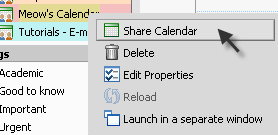
Right click on the calendar you wish to share. Choose ‘Share Calendar’ from the menu that appears.
-
The Share Properties menu should appear.
Sharing with Internal Users or Groups
-
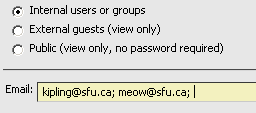
By default, the user type is set to ‘Internal users or groups’. This includes all SFU students, staff and faculty members with an ‘@sfu.ca’ e-mail address. You can enter one or more e-mail addresses in the ‘Email’ field.
-
Next, choose a Role for the share recipient(s).
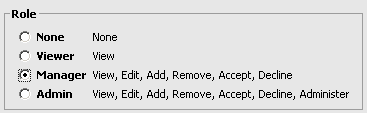
Note: The difference between Manager access and Admin access is that Admin access also enables the share recipient to create shares with other users. Therefore, we do not recommend giving share recipients Admin access.
-
If you want your share recipients to see your appointments marked as ‘Private’, check the ‘Allow user(s) to see my private appointments’ box:

For most shares, this box would be left unchecked. Note that checking this box will only allow your share recipients to view your private appointments in this specific calendar; the details of your private appointments will not be visible to anyone else.
-
Select the method in which you would like to notify the share recipient(s). The standard message displays your name, the name of the shared item, permissions you have granted to the recipients, and login information, if necessary.
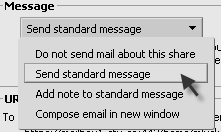
Note: If you choose ‘Compose email in new window’, a new message window will open for each share recipient after you click ‘OK’ to confirm the share.
Sharing with External Guests (View Only)
-
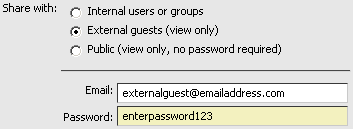
Shares with external guests are view only. You may choose to enter a password they will need to enter to access the calendar.
Note: You can only create shares to external guests with your own calendars, i.e., your default calendar and calendars created by you.
-
If you want your share recipients to see your appointments marked as ‘Private’, check the ‘Allow user(s) to see my private appointments’ box:
For most shares, this box would be left unchecked. Note that checking this box will only allow your share recipients to view your private appointments in this specific calendar; the details of your private appointments will not be visible to anyone else.
-
Select the method in which you would like to notify the share recipient(s). The standard message displays your name, the name of the shared item, permissions you have granted to the recipients, and login information, if necessary.
Note: If you choose ‘Compose email in new window’, a new message window will open for each share recipient after you click ‘OK’ to confirm the share.
Creating a Public Share (View Only)
-
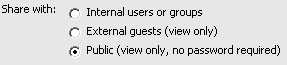
Public shares are view only and do not require passwords. This means that the details of all public meetings on the can then be viewed by anyone. Details of private meetings will still be hidden.
Note: You can only create shares to external guests with your own calendars, i.e., your default calendar and calendars created by you.
-
Click ‘OK’ to complete the share. If a person wishes to view the calendar, they can go to the URL specified under the ‘URL’ and add ‘.html’ at the end of the URL to view a web page.

Accepting a Share
-
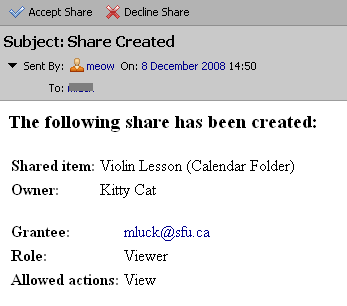
When someone shares a calendar, they may choose to send you an e-mail message to notify you.
Below is an example of what the message will look like:
-
Click on the ‘Accept Share’ button to accept the share. The e-mail message will be placed in your Trash mailbox once you have clicked this button.

-
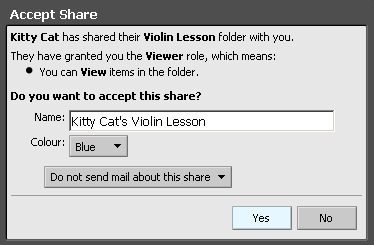
A menu should pop up, allowing you to enter a name and choose a color for the new shared calendar. Click ‘Yes’ to finish accepting the share.
-
Click on the Calendar tab.
-
Your shared calendar has now been created. You should now see the new shared calendar on the left side of the screen, located under your list of calendars.
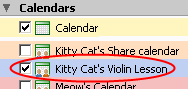
Note: Calendars have different icons depending on whether they are shared or created by you. -
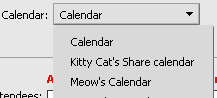
The shared calendar will appear in the list of destination calendars when creating a new meeting.
For calendar owners with delegates, see also How-To Guide: Setting up Filters for Calendar Notifications