
How-to guides
Linking to a Shared Calendar
 Download the PDF version of this How-to Guide
‹‹ Return to How-to guides & videos
Table of contents
When to Link to a Shared Calendar

With the Share Discovery and Link to a Shared Calendar options, you can accept a calendar that has been shared to you via a mail list, or if you have accidentally removed a shared calendar and wish to re-mount it without having to ask the calendar owner to resend the share notification message.
Using Share Discovery
Note: To use Share Discovery, you will need to know the SFU email address of the person who created the share.
- Navigate to the Preferences tab in SFU Connect.

- Click on Sharing on the left side menu. It may take several moments to load while the system is retrieving shares created to and from your account.
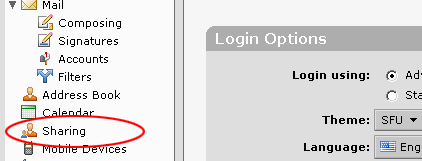
- Near the top of the page, for Show folders shared with me by the following user, enter the SFU email address of the person who created the share. Click Find Shares.

- A list of shared items from the person will appear. If the person has shared an item to an SFU mail list to which you belong, it will also appear in this list. Click Accept on an item.

- The Accept Share dialogue will appear. Enter a name and choose a colour for the shared item. Click Yes to finish accepting the share.

- The shared item should now be linked. If it does not appear, simply refresh your browser.

Manually Linking to a Shared Calendar
To Manually link to a shared calendar, you will need to know:
- The calendar owners SFU email address
- The shared calendar's name
- Navigate to the Calendar tab in SFU Connect.

- Right click on the Calendar header.

- A menu should appear. Choose Link to Shared Calendar.

- The Link to Shared Calendar menu should appear.

- For Email, enter the e-mail address of the calendars owner.

- For Path, enter the calendars name as it appears in the owners calendar. For example, if the user has shared their default calendar with you (labeled Calendar), type in Calendar.

- Note that the Name field is automatically populated based on what you type into Path. You can always change the Name field and also the colour of the calendar. Once you have finished, click OK to create the shared calendar.

- The shared calendar will then appear in your list of calendars on the left of the screen.

Note that shared calendars have a different icon from calendars created by you. They have an icon with two small figures:
- If you are unsure of what type of access you have, you can right click on the shared calendar and choose Edit Properties.

- The properties of the shared calendar will then be displayed.

In this example, for Permissions, the share recipient is able to View, Edit, Add, Remove, Accept or Decline meetings. You can also change the name of the calendar and the colour in this menu. Click OK once you have finished.
Checking Access Type
Common Error Messages
When the Calendar Has Not Yet Been Shared
- If the calendar has not yet been shared with you, the following message will appear.

- In this case, please contact the calendar owner to have them initiate the share.
- If an incorrect or invalid calendar name is entered in the Name field, after clicking OK, this message will appear.

- Click OK and re-enter the calendar name. If necessary, please contact the calendar owner to verify the name of the shared calendar.
‹‹ Return to How-to guides & videos