Automatic Model Fitting Results Window
This resizable window displays the models fit by the most recent
invocation of the Automatic Model Fitting window. It appears automatically after
Automatic Model Fitting runs, and can be brought up repeatedly from that
window using the Models Fit button or by selecting Models Fit from the
View pull-down menu. Once you exit the Automatic Model Fitting window, the
Automatic Model Fitting Results window cannot be opened again until you fit additional
models using Automatic Model Fitting.
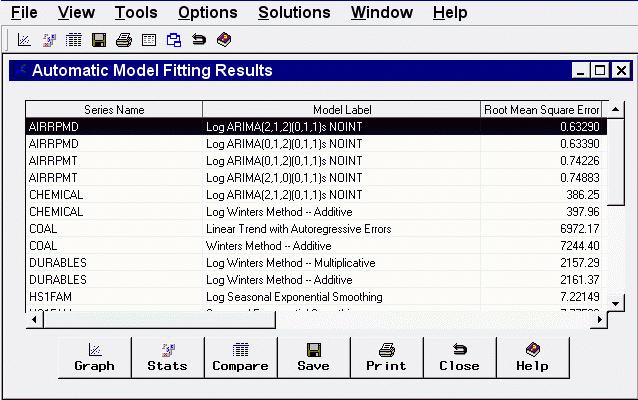
Table contents
The results table displays the series name in the first column and the model label
in the second column. If you have chosen to retain more than one model using the
Automatic Model Selection Options window, more than one row appears in the table for each series; that
is, there is a row for each model fit. If you have already fit models to the same series
before invokving the Automatic Model Fitting window, those models do not appear here, since
the Automatic Model Fitting Results window is intended to show the results of the current operation
of Automatic Model Fitting. To see all models which have been fit, use the Manage Projects window.
The third column of the table shows the values of the current model selection criterion statistic.
Additional columns show the values of other fit statistics. The set of statistics shown are
selectable using the Statistics of Fit Selection window.
Controls and Fields
- Graph
-
brings up the Model Viewer window on the model currently selected in the table.
- Stats
-
brings up the Statistics of Fit Selection window. This controls the set of
goodness-of-fit statistics displayed in the table and in other parts of the Time Series
Forecasting System.
- Compare
-
brings up the Model Fit Comparison window for the series currently selected in the
table. This button is grayed out if the currently selected row in the table represents a
series for which fewer than two models have been fit.
- Save
-
brings up an output data set dialog, enabling you to specify a SAS data set to which the
contents of the table will be saved. Note that this operation saves what you see in the
table. If you want to save the models themselves for use in a future session, use the
Manage Projects window.
- Print
-
prints the contents of the table, using current print settings of the Print Setup window.
- Close
-
closes the window and returns to the Automatic Model Fitting window.
Menu Bar
- File
-
- Save
-
brings up an output data set dialog, enabling you to specify a SAS data set to which the
contents of the table will be saved. This is the same as the Save button.
- Print
-
prints the contents of the table, using current print settings of the Print Setup window.
This is the same as the Print button.
- Import Data
-
is available if you license SAS/Access software.
It brings up an Import Wizard which you can use to import your data
from an external spreadsheet or data base to a SAS data set for use
in the Time Series Forecasting System.
- Export Data
-
is available if you license SAS/Access software.
It brings up an Export Wizard which you can use to export a SAS
data set, such as a forecast data set created with the Time Series
Forecasting System, to an external spreadsheet or data base.
- Print Setup
-
brings up the Print Setup window, which allows you to access your
operating system print setup or choose SAS/Graph print drivers.
- Close
-
closes the window and returns to the Automatic Model Fitting window.
- View
-
- Model Predictions
-
brings up the Model Viewer to display a predicted and actual plot
for the currently highlighted model.
- Prediction Errors
-
brings up the Model Viewer to display the prediction errors
for the currently highlighted model.
- Prediction Error Autocorrelations
-
brings up the Model Viewer to display the prediction error autocorrelations,
partial autocorrelations, and inverse autocorrelations
for the currently highlighted model.
- Prediction Error Tests
-
brings up the Model Viewer to display graphs of white noise and
stationarity tests on the prediction errors of the currently highlighted model.
- Parameter Estimates
-
brings up the Model Viewer to display the parameter estimates table
for the currently highlighted model.
- Statistics of Fit
-
brings up the Model Viewer window to display goodness-of-fit statistics
for the currently highlighted model.
- Forecast Graph
-
brings up the Model Viewer to graph the forecasts
for the currently highlighted model.
- Forecast Table
-
brings up the Model Viewer to display forecasts for the currently
highlighted model in a table.
- Tools
-
- Compare Models
-
brings up the Model Fit Comparison window
to display fit statistics for selected pairs of forecasting models.
This item is grayed out until you select a series in the table for which
the automatic model fitting run selected two or more models.
- Options
-
- Statistics of Fit
-
brings up the Statistics of Fit Selection window. This is the same
as the Stats button.
- Column Labels
-
selects long or short column labels for the table. Long column labels
are used by default.
Copyright © 1999 by SAS Institute Inc., Cary, NC, USA. All rights reserved.


