Selection/Layers
Making Selection
You can use Photoshop selection tools to select areas of an image to change/transform color and shapes for you projects. The selection tool in Photoshop will create an outline around the image that look like dashed blinking lines, to outline selections in an image you want to modify; only the area with in those boundaries are affected. The selection boundary display is called a marquee. The lasso tool allows you to create sections that have irregular borders. There are 3 types of lasso tools - regular Lasso, the Polygonal lasso and the Magnetic Lasso.
The Lasso tool is a good choice when you want to make quick free hand selections, but because the selection is automatically completed when you release the mouse button , it's not the best choice when you want to create long, complicated selections.
The Polygonal Lasso tool allows you to create only selections with straight lines. This Lasso tools has an advantage over the regular lasso tool because you can stop and release the mouse button with out the selection being completed.
You can use the Magnetic Lasso tool for a selection around very complex objects. The Magnetic Lasso automatically snaps to the edges of your image, those areas of your image where there is a discernable difference in the color of the pixels.. This Lasso tool is the most detailed selection tool and it can also be the most time consuming.
Selecting with Lasso
In this exercise we will be using week2_SUB.jpg
1. Click and hold the mouse over the lasso tool (the lasso tool menu appears), select a lasso tool

2. Click around the image to make a selection. *note the lasso requires a complete boundary, so draw with intent to return to the origin point

3. Finish the selection at the origin, via clicking or releasing the mouse button (when you position the polygonal Lasso tool over your starting point a circle appears next to the curser as an indicator that you are about to finish your selection); Once you will close your selection, you can hold on Shift while selecting to add parts into your current selection and hold on Alt for subtraction of selections.

4. After your selection is done, you can go to Select>Save Selection to save your selection in case you need in the future. To bring the selection back, go to Select> Load Selection to load the selections you have saved.

Selecting with Quick Mask
With the Quick Mask on you can easily "paint" a mask which will be turned into a selection once you pop back into Standard Mode. Painting the mask is as simple as selecting the Paintbrush tool or the Pencil tool. Drawing with black will paint the mask on and drawing in white will remove the mask. Moreover, the selection you made with brush contains gradient information which allows it to blend nicely with the rest of the image if you have applied any filters or effects to the selection.
In this exercise we will be using week2_SUB.jpg
1. Click the quick mask icon (or keyboard shortcut Q) on tool box to turn on the Quick Mask mode

2. Select the Paint Bucket Tool and fill out the canvas with black(100% hardness) *note you must do this step in the Quick Mask mode, otherwise you will not see translucent red paint

3. Select the Brush tool and set a reasonable brush size because we are going to paint out the red paint on the submarine

4. Switch the foreground color to pure white so the brush will act as an eraser in the Quick Mask mode (or Keyboard shortcut X)

5. Brush out the red paint on the submarine *note that you can paint back the red paint with black foreground color (X) if you mistakenly paint over the edge.

6. When you have a clear submarine, you can click the Quick Mask mode icon (Q)

7. Once you switch back to standard mode, the paint over in Quick Mask mode will turn to a selection just like you did with Lasso.

Layers
Layer Visibility
Before you start to work with multiple layers composition, one thing you should keep in mind is that you should make sure you are working on the layer you have selected. To ensure that what you view in the canvas is the actually layer you select you can turn off the visibility of layers which block the way of your view.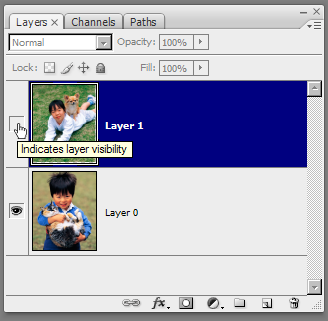
Creating layered composition
In this exercise we will be using week2_DOLPHINS.jpg and week2_SUB.jpg
1. Choose any selection tools (magic wand, lasso, marquee), hover over the selected area, right click then select layer via cut or copy

2. Open the week2_DOLPHINS.jpg and paste your cropped image onto the stage (Photoshop automatically creating a new layer for the pasted contents).

3. Click at the top-right of layer palette, there are several layer options you can apply such as add a new blank layer, duplicate current layer and etc.

4. Notice that a new layer has been added to your project; this will happen whenever you paste anything onto the stage.

Manipulating compositions
1.To move your pasted image and scale it to the proper size and angle, use the free transform tool (EDIT > FREE TRANSFORM).

2. The lasso tools are useful for quickly selecting regions of your image, you can find them in the toolbox.

3. Copy the original image and paste it above the submarine layer, experiment with the lasso tools to select a rough outline of the boat's hull.
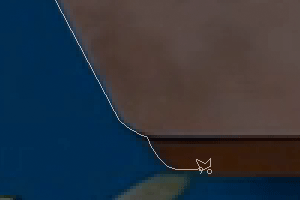
4. The Lasso tools are great for creating quick selected regions, but they often miss some of the softer edges.

Export Your Files
After hours of hardworking, you want to save your file or you want to export the final product. Save your project as PSD format will preserve all the layer information, so you can edit it later.

Exporting your Projects
1. Go to File>Save for Web Devices
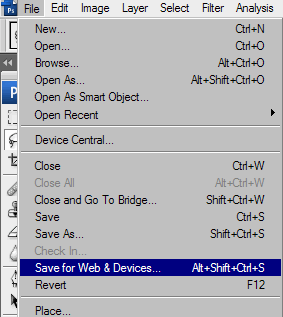
Select a format for your project.
GIF, JPEG and PNG are most commonly used format for web transfering.

GIF: The Graphics Interchange Format (GIF) is an 8-bit-per-pixel bitmap image format; he format uses a palette of up to 256 distinct colors from the 24-bit RGB color space. It also supports animations and allows a separate palette of 256 colors for each frame. The color limitation makes the GIF format unsuitable for reproducing color photographs and other images with continuous color, but it is well-suited for more simple images such as graphics or logos with solid areas of color.
JPEG: JPEG is a commonly used method of compression for photographic images. It allows a palettes of 24-bit RGB colors. The JPEG standard specifies both the codec, which defines how an image is compressed into a stream of bytes and decompressed back into an image, and the file format used to contain that stream. The compression method is usually lossy compression, meaning that some visual quality is lost in the process and cannot be restored, although there are variations on the standard baseline JPEG that are lossless.
PNG: Portable Network Graphics (PNG) is a bitmapped image format that employs lossless data compression. PNG supports palette-based (palettes of 24-bit RGB colors), greyscale or RGB images. PNG was designed for transferring images on the Internet, not professional graphics, and so does not support other color spaces (such as CMYK).
For more file types detail, visit links below
BMP - a standard Windows image format.
EPS - a format that can contain both vector and bitmap graphics (supported by virutally all programs).
GIF - a format commonly used for images to be viewed on the web.
JPEG - a format commonly used for images to be viewed on the web, this format supports various color modes (i.e. CMYK, RGB, Grayscale).
PDF - a cross-platform / cross-application format, similar to EPS.
PNG - an alternative to GIF and JPEG formats that supports background transparency.
PSD - photoshop file format.