|
Data
Manipulation
Projection/Transformation of the Datasets
The
datasets we were given were not projected and needed to be given
a projection. The dataset was taken from AutoCAD files and there
was a problem with the correct georefencing of the datasets to
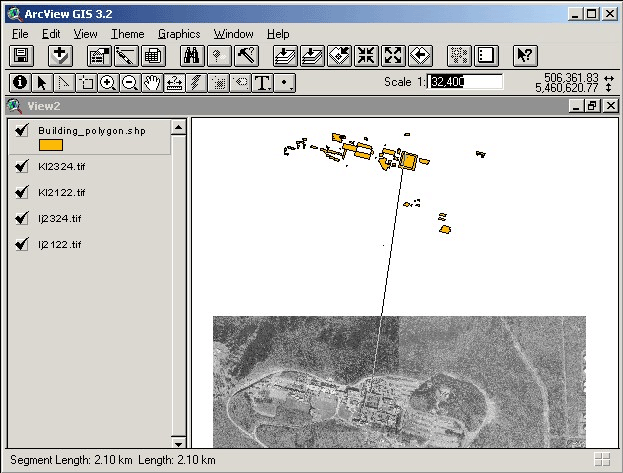
the airphotos. We used the airphotos of Burnaby Mountain to verify
that the datasets were correctly georeferenced. When we displayed
the datasets and the airphotos together, we found that the datasets
were about shifted approximately two kilometers away from the airphotos.
To fix this, ArcInfo was used to translate the dataset from its
current position to a new position which aligned correctly with
the airphotos. ArcInfo has a command called TRANSFORM which changes
coverage coordinates using an affine, similarity or projective
transformation based on a set of control points (tics). We used
the similarity option which would translate the coverage coordinates
without skewing the data. The requirement for the TRANSFORM is
that we need to create an output coverage with the corrected tic
points. The TRANSFORM function will use these tic points as the
parameters for the transformation equation which translates the
dataset to the new location.
The
projection of the dataset was a simple task. Since the shapefiles
were not projected (projection was specified as Geographic) we
needed to project the data into UTM coordinates. The ArcInfo command
PROJECT was used to project the data. Before projecting, the shapefiles
were exported to ArcInfo coverages using ArcCatalog. We could only
do the projection on dataset if it was in coverage format. We needed
to create a projection file that would transform the input projection
(Geographic) to the output projection (UTM). That projection file,
geog2utm.prj, is shown below:
/**** geog2utm.prj
*****/
Input
Projection Geographic
Units DD
Datum NAD83
Parameters
Output
Projection UTM
Units Meters
Datum NAD83
Zone 10
Parameters
End
Redigitizing of SFU Buildings and Other Layers
We
discovered that for some of the datasets it would be more efficient
to redigitize the data over again. One of the datasets that had
problems was the SFU buildings layer. This layer did not have separate
polygons for many of the buildings and also were missing a few
buildings. We also had to digitize a new layer called “fields”
which combined all the playing fields on campus as well as the
AQ pond. For the campus roads we decided to create two layers,
one for the larger public roads and the other for the smaller restricted-access
roads. We used ArcEdit for all the digitizing work. To redigitize
the linework we needed to use the linework from the original AutoCAD
dataset.
Creating the Static Viewshed Images in ArcView
Besides
the viewshed analysis using QTVR, we wanted to include static viewshed
image for each viewpoint to show the visible surrounding areas.
The static viewshed images give the user a map of the areas that
are visible from the specific ground viewpoint. We only created
viewshed images for the ground viewpoints and not the ones that
were taken on the buildings since we do not know the exact elevation
of these points. ArcView has an extension called 3D Analyst
that allows a viewshed to be created from a Triangulated Irregular
Network (TIN). ArcView allows a viewshed to be created from one
point or many points. We only wanted to create a viewshed for a
single ground viewpoint therefore we had to create shapefiles for
each one. ArcEdit was used to extract the viewpoints from the master
viewpoint coverageand put them into individual coverages. These
coverages were then exported back into shapefiles to be used in
ArcView.
One
preliminary step to do is to create a TIN surface from a layer
with elevation points. We used the contour line shapefile to create
the TIN surface. The TIN acts as the elevation surface from which
the viewshed is determined. We now have a TIN surface as well as
the shapefiles for each individual ground viewpoint. The viewshed
image was created by simply selecting both the TIN surface and
any one of the shapefiles (containing a single viewpoint). One
thing we noticed was that viewshed created using the default one
meter offset from ground level does not show a lot of visible areas.
We tried using a two meter offset and this shows slightly more
visible areas as expected. The two meter offset was favoured over
the one meter offset.
|