| Methodology
Creating the Basic Application Environment
Bringing
GIS to the Internet is not as simple as generating some images,
writing some HTML code and uploading it to a server. The web,
as we know it, is not well-suited to the level of dynamic environment
required. The web is, primarily, a static environment. To overcome
this limitation, a separate environment, working in parallel
with the web, is required. This environment is ESRI’s
ArcIMS.
ArcIMS
is an Internet Mapping Server. IMS allows existing GIS data
to be published interactively on the web. According to ESRI,
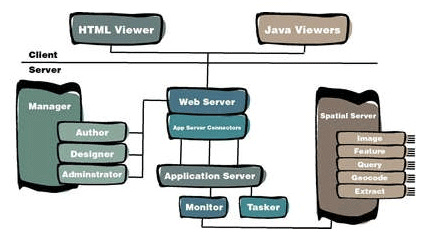
“IMS also does something that no other Web-based mapping solution [MapQuest, Yahoo! Maps, etc.] can: it enables true distribution of GIS applications on the Web.” ArcIMS operates in a distributed computing environment; a client (the end-user at their home or office computer) requests information from an Internet or Intranet server. The server then processes the request and sends the information back to the client viewer.
ArcIMS
allow the integration and presentation of data from multiple
sources. Locally stored shapefiles, coverages and ArcSDE layers
can be combined with web-located data for localized query and
analysis. The resulting presentation can be used as-is, in its
default state, or can be highly customized and tailored to the
individual project’s needs.
ArcIMS
integrates all the tools required to define, design, host and
manage the site. This suite of tools is discussed in detail
below.
Applications Used
ArcIMS
ArcIMS,
and its various components, was the main application used in
the creation of the application site. The term “components”
is used as ArcIMS is more of a suite of programs that work with
one another rather than one standalone application. Although
these programs, Author, Designer and Administrator are all available
as standalone Windows (and UNIX) applications, one program,
ArcIMS Manager, brings them all together in one web-based interface.
Manager also allows remote site management. Our application
site was created using the tools provided in ArcIMS Manager,
but it could easily have been designed using the tools independently
of one another.
The
first step in authoring a map and publishing it on the Internet
is creating a MapService. “A MapService allows the content
of a map configuration file to be published on the Internet
and sets the framework for the web site’s functionality.”
(ESRI, Using ArcIMS 3.1, 39). These configuration files, or
.axl files, are structured text files, written in ArcXML, that
“define content for MapServices and is used for requests
and responses between clients… and servers.” (ESRI,
149). MapService configuration files are set up in ArcIMS Author.
Author’s
interface is somewhat similar to that of ArcView GIS. Author
allows for data (in ArcView shapfile, ArcInfo coverage or ArcSDE
layer format) to be added. Like ArcView, Author sports a legend
containing entries for each layer added. Right-clicking on each
layer presents a menu full
of options, including a Layer Properties option. The properties
dialog box allows the user to change the name of the layer,
set legend (colour, shading, stoke pitch, etc.) and label (font,
size, positioning, style, etc.) options and change scale range
settings. Author also allows the user to configure scale bar
settings (screen and map units).
Author
also allows the user to add MapTips to any layers present in
the MapService. A MapTip is a text box that appears when the
user hovers the mouse pointer over a feature on the map. Our
application makes extensive use of MapTips; when a user hovers
the mouse pointer over a University building on the map, for
example, a MapTip appears that displays the name and abbreviation
of that building (i.e.“Academic Quadrangle (AQ)”).
One field per layer can be defined as that layer’s MapTip.
This created a problem for our application. The building layer,
for example, has separate fields for the building name and the
building abbreviation; we used the concatenate function in Excel
to create a MapTip field that combines the required two fields.
Creating the MapTip for the viewpoint layer required concatenating
four separate fields along with several text strings.
Once
the data is imported and all customizations have been completed,
the settings are saved to an .axl file. The output of the MapService
configuration file for our application, sfu.axl, is provided
in Appendix C. This .axl file can be edited in a text editor
for further configuration, if required. For example, we edited
sfu.axl in order to change the colours of the proposed building
layers after the original file had been created in Author.
The
final step in creating the application is designing the website.
This is accomplished in ArcIMS Designer, a wizard-based program
that sets the parameters for the look and feel of the website.
Designer allows the site administrator to set the following
parameters:
• Adding
a MapService (the file created in Author);
• Choosing
between the HTML and Java Viewers (see below);
• Choosing
the site template (see below);
• Choosing
colours;
• Setting
the map scale and extent;
• Choosing
what layers are or are not visible;
• Defining
the overview map, if used (we did not use an overview map);
• Setting
scale bar options;
• Choosing
what tools are provided to the user;
• Setting
MapTips;
• Setting
the final location (directory) for the website.
The two most important
decisions that need to be made while using Designer are:
a) what viewer to use (HTML or
Java) and
b) what template to use (HTML,
Java Standard or Java Custom).
The
Viewer screen in designer offers the administrator up to two
choices of viewers: HTML Viewer and Java Viewer. The HTML Viewer,
a simple, server-side interface that offers limited functionality,
is only available if the chosen MapService consists of one Image
MapService. If this is not the case, the HTML Viewer option
will appear grayed out and the only choice available will be
the Java Viewer. The Java Viewer allows for more functionality,
live streaming of data, and more customization. Using the Java
Viewer necessitates the end user to download and install extra
software to their PC – a Java runtime environment, or JRE,
and the ArcIMS viewer software are both required for complete
and proper functionality. Our application uses the Java Viewer.
After
choosing the viewer, the administrator has to choose what template
to base their site design on. If the site uses the HTML Viewer,
the only choice given is the HTML template. If the site, like
ours, uses the Java Viewer, there are two possible choices:
Java Standard and Java Custom. The standard template includes
all possible tools, a toolbar across the top of the screen,
and does not allow for customization. The custom template offers
a toolbar along the left side of the page, a choice of which
tools are provided to the user, and full customization of the
site using HTML and JavaScript. The UniverCity application uses
the custom template. Most of the site has been changed from
its stock state; these customizations are elsewhere in this
report.
After
all choices have been made, Designer writes the necessary files
to the specified directories and the site is ready for use or
further customization.
The
final ArcIMS application is ArcIMS Administrator. Administrator
offers many of the same features as the administration section
of Manager, but in a standalone application. Administrator (and
Manager) offers the following functionality:
• Starting
and stopping MapServices;
• Opening
and refreshing a site (for making changes to the legend,
for example);
• Creating
a new MapService;
• Saving
the site configuration;
• Deleting
a MapService;
• Managing
Virtual Servers and folders.
ArcView GIS
ArcView
GIS is a desktop GIS application developed by ESRI. ArcView
was used to manipulate and prepare the data for our application.
We used it to:
• Add attribute
data to the basic shapfiles, such as building name, viewpoint
elevation, etc.
• Remove
extraneous data, such as spurious polygons.
• Create
the TIN models and viewshed maps, using the 3D Analyst module.
ArcInfo Workstation & ArcEdit
ArcInfo
is the comprehensive GIS that allows us to do numerous geoprocessing
work like projecting and transforming our dataset. ArcEdit is
the sub environment in ArcInfo which allows us to do the editing
and digitizing of the ArcInfo coverages.
ArcCatalog
This
ArcGIS application allows us to convert the dataset format between
ArcInfo coverages and ArcView shapefiles and vice versa. The
application works functions like a “Windows Explorer”
for GIS data; it allows the user to manage their data.
Microsoft Excel
Microsoft
Excel was used to make a variety of modifications to the dataset.
It was used to add fields to shapefiles, convert the case of
the URLs in viewpoints.dbf from uppercase to lowercase, create
the MAPTIP fields (using the concatenate function to combine
several fields into a new single field).
FileMaker Pro
FileMaker
Pro is a relational database program. While adding attributes
to the SFU Buildings layer, the .dfb file was damaged. There
were more entries in the attribute table than in the shapefile
index. Rather than start entering attributes all over again,
we took a backup copy of the shapefile (with empty NAME and
ABBR fields), imported it into FileMaker, linked it to the damaged
copy, and using the polygon ID field as a key, we pulled the
NAME and ABBR fields from the damaged file to the new, clean
copy. The database was exported to a tab-delimited text file.
That file was then opened in Excel and saved as a dBase IV (.dbf)
file. ArcView was properly able to open the final .dbf file.
VR Worx
VR
Worx was used to create the 360º panoramic views that accompany
the application site. These views use a technology called QuickTime
Virtual Reality, or QTVR. A QTVR panorama is a series of still
images that are “stitched” together to create
a single long image of a given scene. That image is then “wrapped”
around to create a 360º circle. When viewed, the QTVR movie
gives the effect of standing in one place and turning one’s
body in a complete circle.We used a Kodak DC3400 digital camera
to capture between 10 and 21 images for each of our viewpoints.
With the camera mounted on a tripod, we simply took a series
of pictures around the tripod’s rotational axis, trying
to achieve approximately 50% overlap in each image. In all,
we ended up with approximately 315 images.
Once
the images had been downloaded and captured, we used VR Worx
to create the panoramas. A template was created that had presets
for the focal length of the camera’s lens, angle of view
and over-lap. The program took the images from each viewpoint,
stitched them together to form the panoramic image, blended
them together and compressed and created the final movie file.
The resulting files range in size from 350 kb to 1.5 MB in size.
Miscellaneous
Software
Other
software used for the application site included: Adobe GoLive,
Adobe Illustrator, Adobe Photoshop, BBEdit and Macromedia Freehand.
|