

- Engage C&M
- Brand
- Campus Communications
- Media & News
- Social
- Web
- Events Calendar
Set Up Website
Setting up your website includes creating the main navigation and sub-pages, and adding your department specific social media links and contact information. You also have the option to add an audience navigation for your secondary audience.
Horizontal Navigation & Site Map
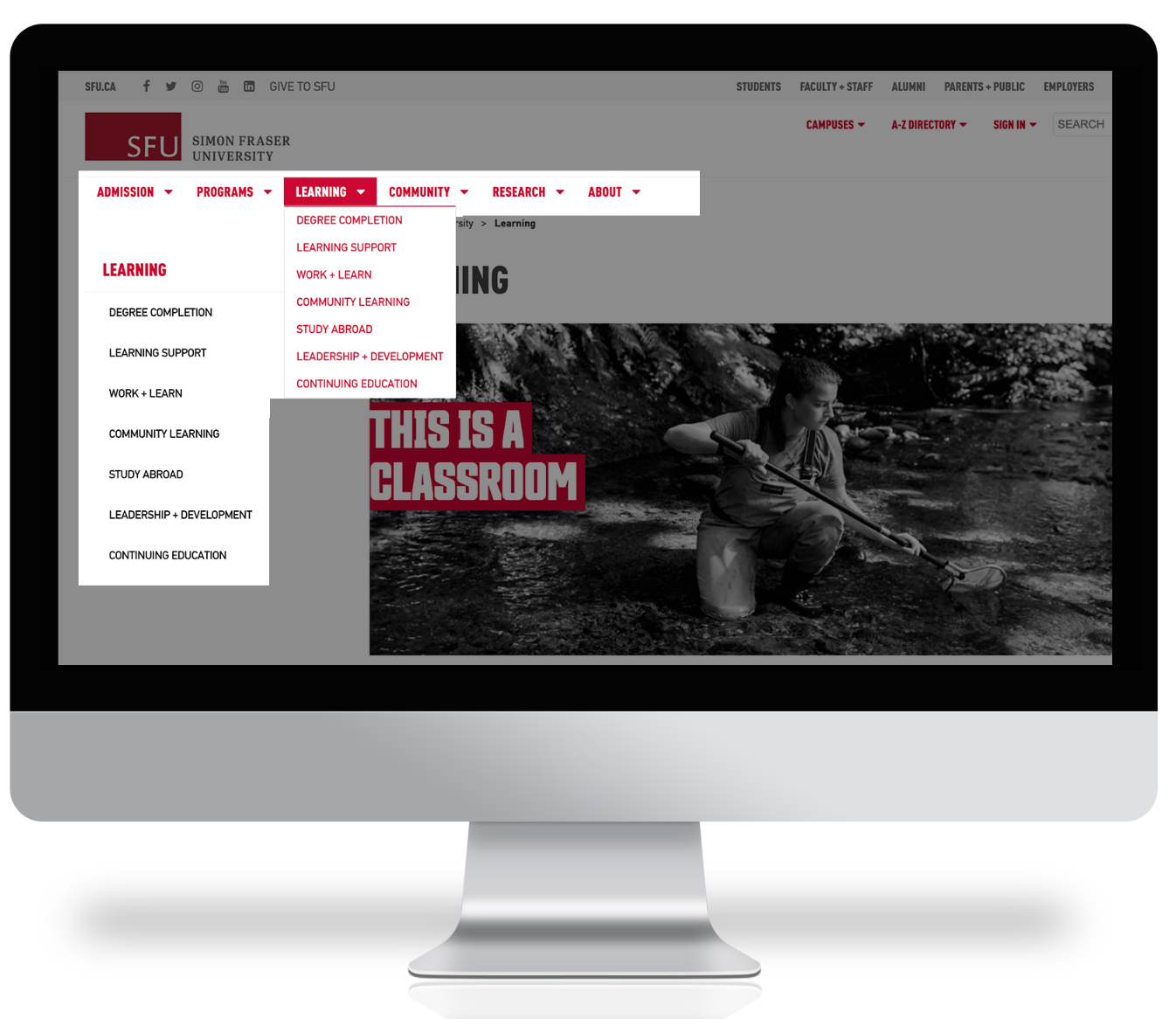
Desktop
On desktop, the main navigation is horizontal along the top with the second level navigation displayed in a drop-down menu below and as parent items if using a sub-page. The third and fourth level is only displayed in the left-side navigation while using the sub-page.
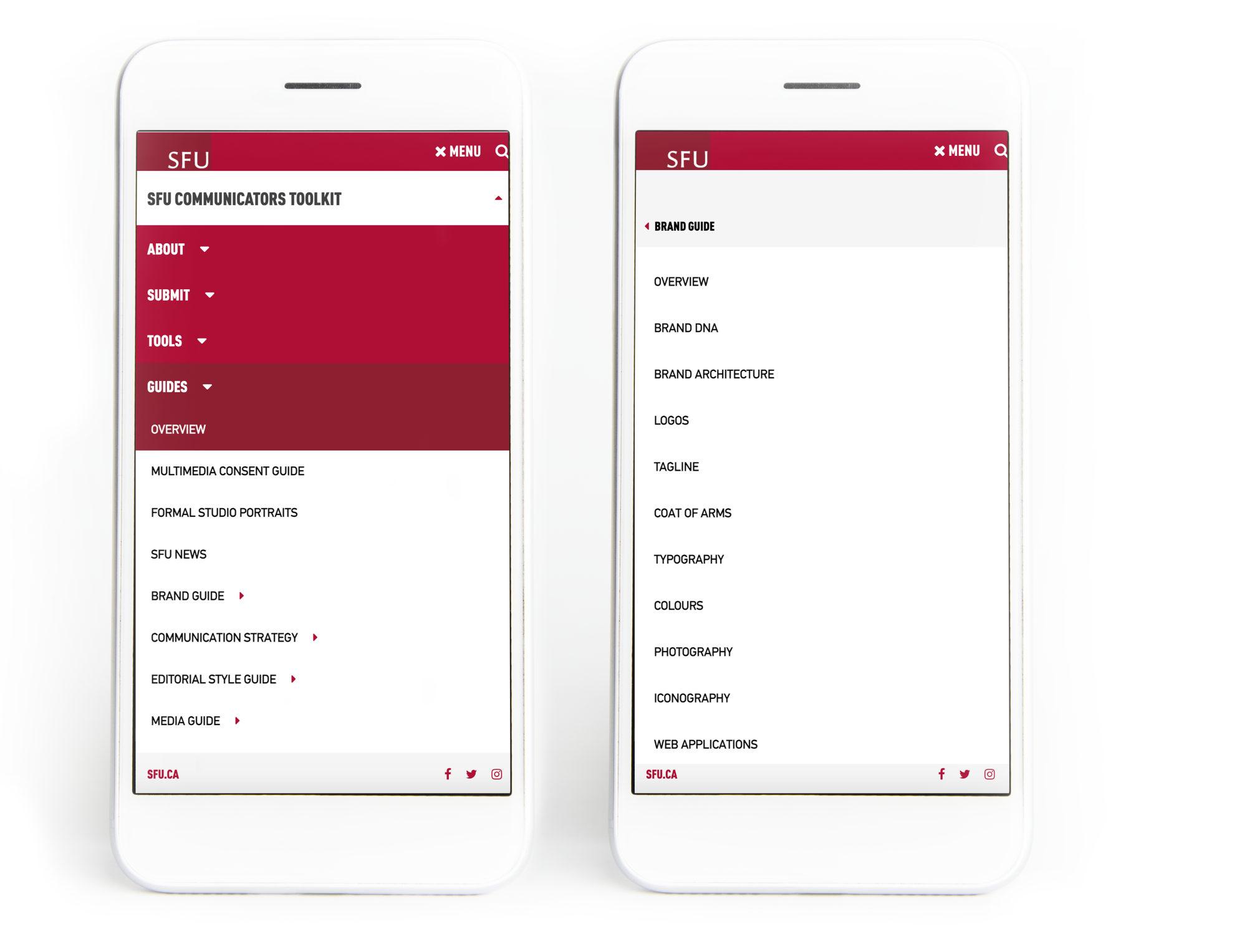
Mobile
On mobile, the main navigation is displayed as a list with the second level navigation hidden until a selection is made. Third level navigation is displayed when a second-level navigation item is clicked.
Design Guidelines
Your primary navigation is defined as part of your information architecture (IA). We recommend starting with five to seven top-level items that fit within the following character count, including spaces:
Eight items - 57 characters
Seven items - 61 characters
Six items - 68 characters
Five items - 73 characters
Four items - 81 characters
When planning your IA, you need to consider the following:
What are my main user needs and how will they accomplish their goals?
What are the different ways users will navigate through my content to find what they need?
What are common terms for the way I want to group my content? For example, putting your location and phone number on a ‘About Us’ page will not be as intuitive as placing it on a page called ‘Contact Us’
How will my website grow and expand in the future?
Best Practices
Menus must be under eight items. If your navigation has too many items, the links will not display on smaller screen/browser sizes and the user will not be able to access your content.
The second level navigation should be no more than seven items. This reduces the chance of users getting lost while navigating your site.
Navigation labels should be simple, well-known terms for your information (i.e.: ‘Events’ instead of ‘Engagement Opportunities’ for hosted events)
Page titles should match their navigation label. Using the title component as your page title for all subpages automatically updates your pages if you change any page name (see title component).
How to
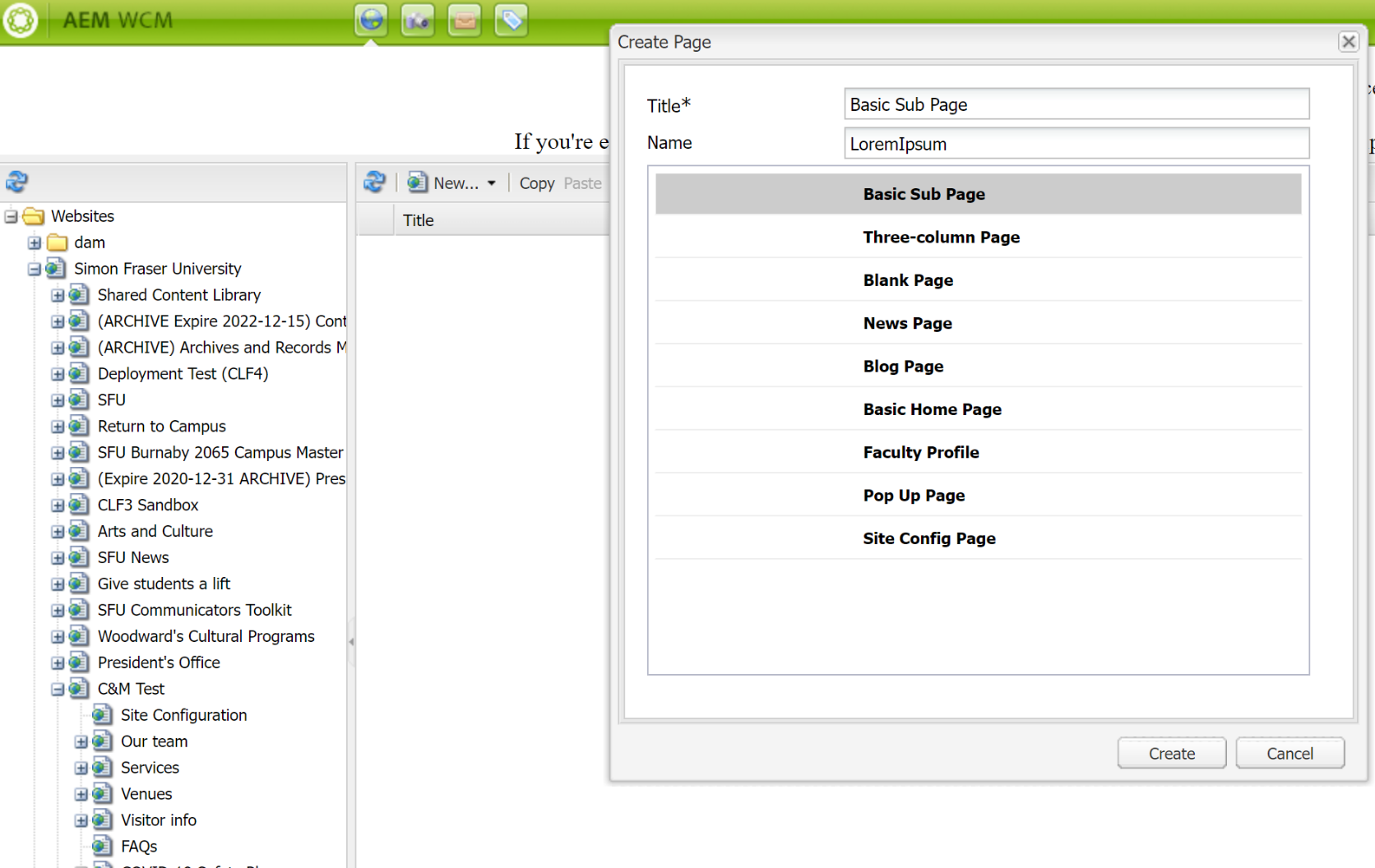
Create Menu items
The Horizontal Navigation will automatically be created as you add top-level pages to your site.
Note: The page will still appear in all other contexts (List component, Carousel component, etc.).
Hide Menu items
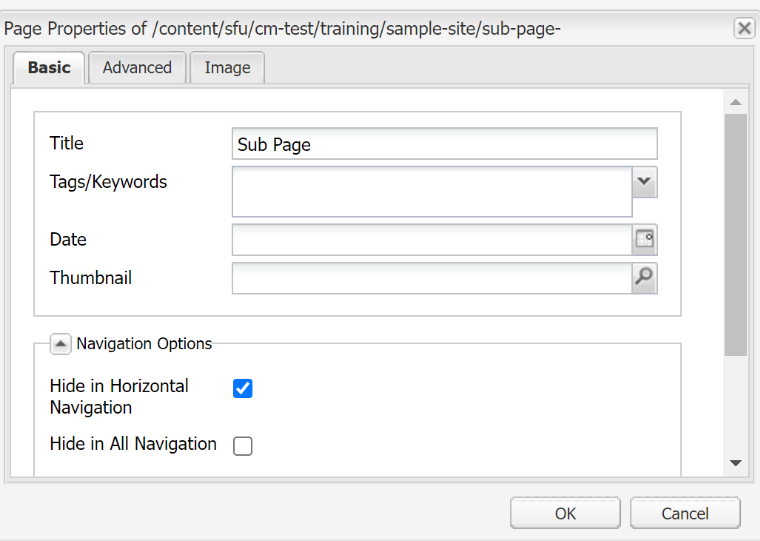
To hide a page from the horizontal navigation, go to your Page Properties.
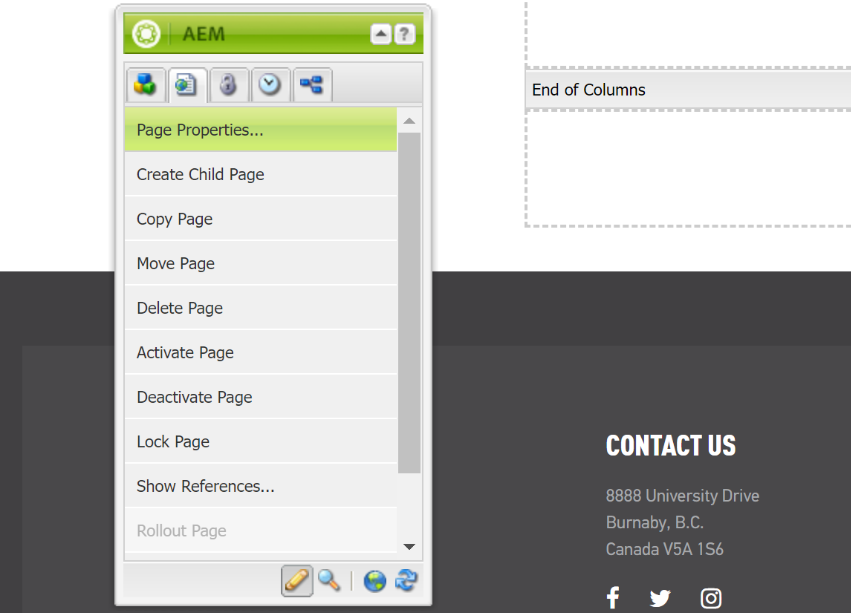
- Under the basic tab, within the "Navigation Options" select the "Hide in Horizontal Navigation" checkbox.
Hiding menu items may be used for:
audience nav pages (See Audience navigation for more information)
a thank you page that was created for a form
"restricted" pages that are automatically hidden from the navigation until a user is signed in (See Restricted Page viewing for more information)
draft pages (to ensure they stay hidden even if accidentally activated)