
- Get help
- Services
- Announcements & alerts
- Service outages
- Security alerts
- Major initiatives
- IFMS updates continue to modernize faculty processes
- Introducing Simon Says virtual assistant
- Tech Upgrades to Transform SFU Learning Spaces
- Liam Goundrey: Workplace Excellence in Action
- Automating processes to make everyday tasks easier at SFU
- Building a connected campus with MS Teams
- Modernizing IT for a better SFU
- Improving speed and coverage with network upgrade program
- Using automation to drive efficiency and innovation at SFU
- Welcome to the new SFU Mail: now faster, secure, intuitive
- Reintroducing IT ServiceHub: Your One-Stop IT Support Platform
- Supporting SFU's Digital Transformation with Exchange Online
- Important changes to SFU email practices
- Transforming the SFU experience through digital improvements - Key Initiatives in Progress
- Jovanna Sauro wins SFU Personal Achievement Award
- Improve your cellular coverage by enabling WiFi Calling
- New committee guides transformative changes at SFU
- Expanded identity options for students within SFU applications
- SFU works toward keeping devices out of landfills
- A journey to improved WiFi
- Help us, help you, connect to better WiFi
- IT Services' new support system: ServiceHub
- Information Security Essential Courses
- IT Services leadership announcement
- University Wide Password Change Initiative
- April 2021 technical issue
- Telephone System Core Infrastructure Upgrade
- Decommissioning fraser.sfu.ca
- About
- Information security
Monitor Network and Zoom Performance
This feature allows the user to monitor network and Zoom performance. If your Zoom connection is unstable, you will see a message pop up that says "Your Internet Connection is Unstable."
The symptoms of an unstable connection when using Zoom can include:
- Zoom jitter
- Zoom packet loss
- Poor quality Zoom audio and video
- Zoom meeting disconnection
How to monitor
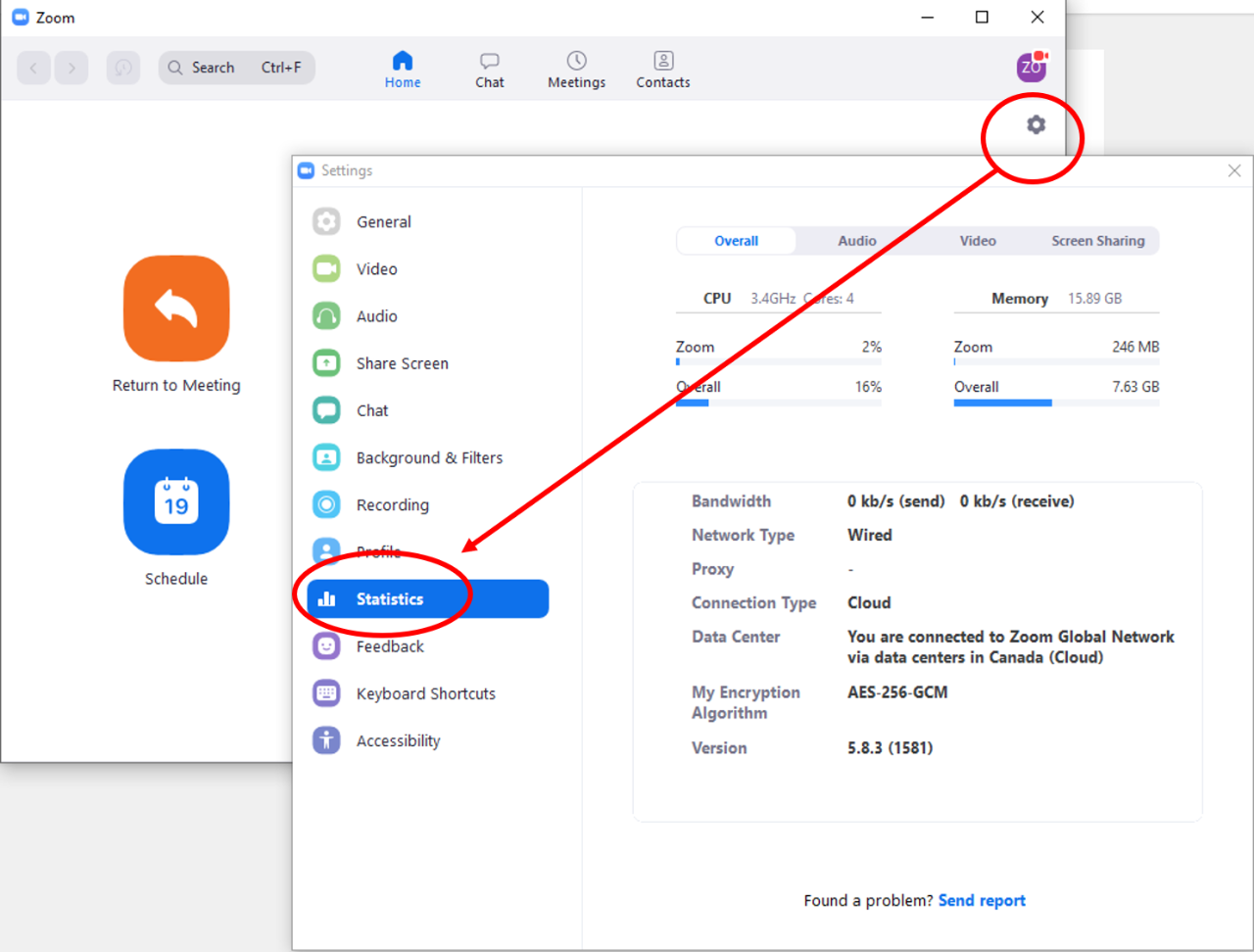
- Open your Zoom Client App, and go to the "Settings" menu.
- Click the "Statistics" button to check the network health status.